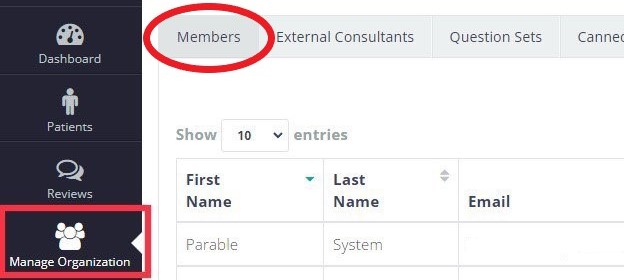
Administrators can manage members by clicking "Manage Organization" on the left-hand navigation bar of the Parable Web app. From the default Members tab, new members can be added and existing members can be edited or removed.
Adding and Inviting Members
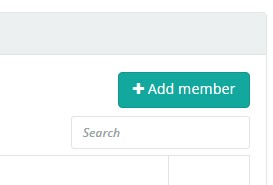
Add new users by clicking on the +Add member button on the top right.
Enter the member’s information and profile settings. Required fields are described below. There are small differences depending on whether or not your organization uses SSO.
- Non-SSO organizations
-
- First Name
- Last Name
- Email Address. An invitation to create a password and join Parable will be sent here.
-
- SSO organizations
-
- User. Use this field to search for users that have previously signed in to Parable. Type in their name or email address and select the correct user in the matches that appear below the field. If the user does not show up, enter their full e-mail address where an invitation to join Parable will be sent.
- Role. For classification purposes, users can be given one of the following roles. Note that a user's Role does not impact any permission or visibility.
-
- General / Administrative
- Doctor
- Nurse
- Physician’s Assistant
- Consultant
-
- Permissions: Sets the level of organizational permission this user has, with the following options.
-
- Restricted: user can only view cases
- Mobile: user can view and manage cases with the mobile app only
- Standard: user can view and manage cases on mobile and web
- Clinical Manager: user can view and manage cases on mobile and web, and perform case reviews
- Admin: user can view and manage cases on mobile and web, and manage organizational settings (e.g. edit/add members)
-
- Case Visibility Restriction: Restrict a member's case visibility to a particular facet (e.g. Region, Facility), or choose "Any..." for unlimited visibility. Available facets are unique to each organization (e.g. some organizations are divided into buildings or facilities, others by zip codes or regions, etc).
-
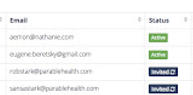
Once these inputs are complete, clicking “Add User” (or "Send Invite" for non-SSO users) on the bottom right will send a Parable invitation to the new team member. If the invite needs to be re-sent, select the team member in the Members tab and click the blue “Invited” button under the Status column to resend the invite to that team member.
Editing and Removing Members
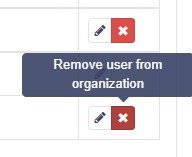
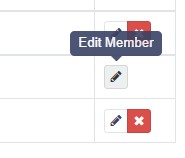
From the default Members tab, a member's attributes (e.g. name, email, permissions, case visibility) can be edited or members can be removed by using the “Edit” and “Delete” icons on the far right of each team member row.

Setting Permissions and Restricting Case Visibility
See the Permissions and Case Visibility article for more information about setting permission levels and restricting case visibility.