Patient List
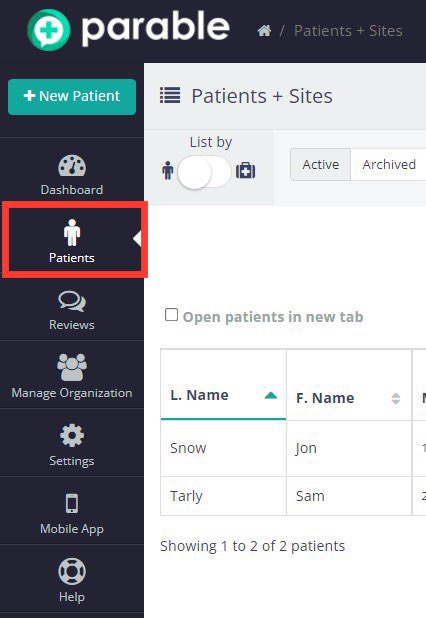
Select "Patients" on the left-hand navigation bar of the Parable web app to access the Patient List.
A search bar and filtering options appear at the top of the Patient List. Use the "List by" toggle on the top left listing to organize the Patient List by wound type instead of name. An export report option is available at the top right. Columns can be clicked to change the sorting order.
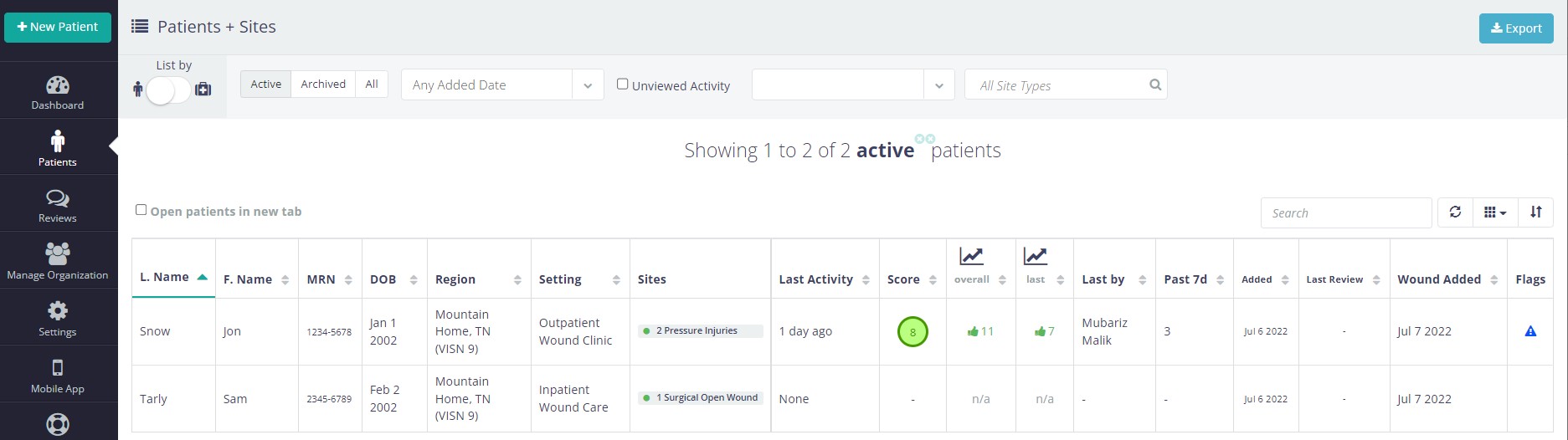
Clicking on an individual patient will bring up the Patient Profile.
Patient Profile
Selecting a patient will bring up that patient's profile screen, which showcases relevant details at a glance and features Navigation Tabs at the top-right to access all of a patient's documentation.
On the Parable web app, case details for wound/lesion sites will appear directly on the Patient Profile screen, unlike on the mobile app where individual wound/lesion sites are managed through a separate Case View screen.
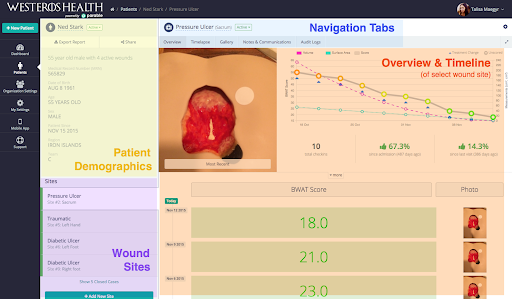
Patient demographics are shown on the top-left, and the patient's wound/lesion sites (cases) are listed on the bottom-left. Clicking on a case brings up a detailed view.
On the right side of the screen, the default Overview tab displays summary timeline and rows of Clinical Assessment Scores (if using quantitative protocols) with corresponding photo thumbnails.
Additional options and features accessible from the patient profile screen include:
- Share (Consult an External Party)
- Exporting Reports
- Editing Patients, Wound Sites, and Assessments (Web App)
- Closing Patients and Case Records (Web App)
Navigation Tabs
Overview
This default tab provides a Timeline of the chosen wound/lesion site, and displays the most recent photo, general information, summary details, and photo thumbnails.
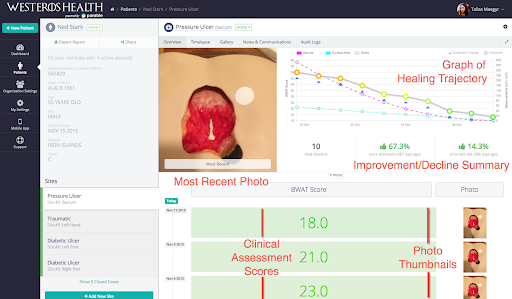
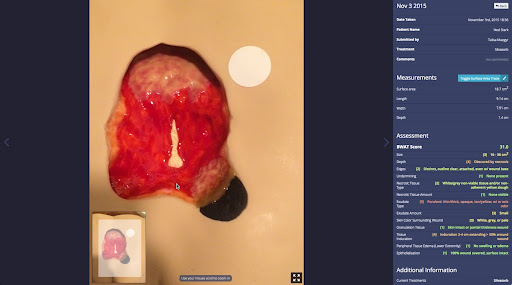
Clinical Assessment Scores displayed in rows on this tab can be clicked for detailed information.
Timelapse
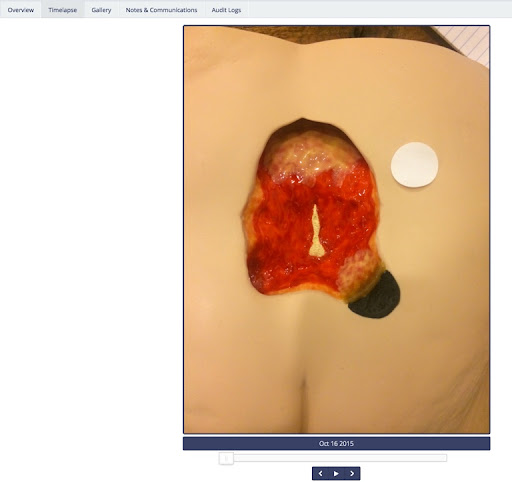
This tab offers a playback of the photographic progression of the wound/lesion site, as a way to visualize how a wound has improved or declined over time.
Gallery
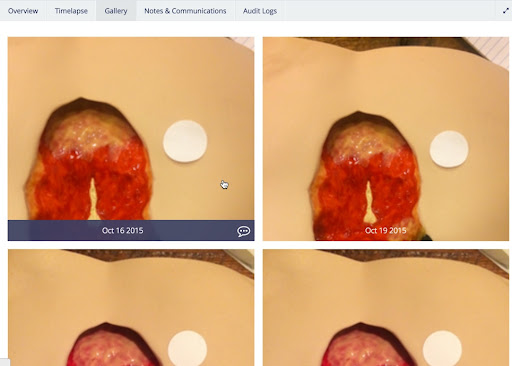
This tab displays a visual library of photos from each assessment. Click on any photo for additional details from that particular assessment.
Notes & Communications
This tab shows all the notes left by other clinicians, which includes case notes from specific assessments as well as notes and messages that were added through the Notes tab.
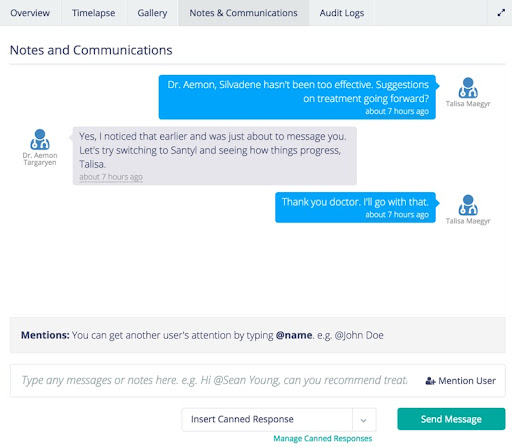
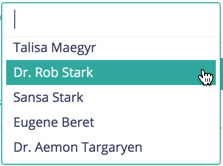
Users can be mentioned in notes to send notifications. Click the +Mention User button in the bottom text field, select the user you’d like to mention, and continue typing your message. You can also type “@” followed by the user’s name anywhere in the text field. Once you begin typing the name of the user you’d like to mention, qualifying names should appear in the auto-complete list.
Audit Logs
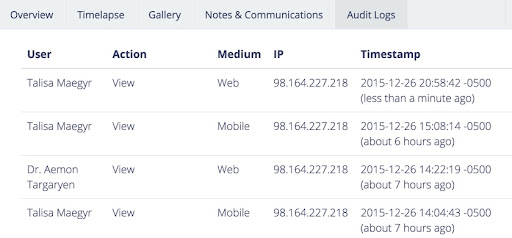
This tab displays the detailed access history of the selected case, listing everyone who has viewed or edited this case in any way, from any device.