PIV-D credentials ("PIV-Derived") enable you to access your PIV certificates on a mobile device to sign into secure apps like Parable. PIV-D and remote access privileges are required for mobile app login.
VPN is required when logging into Parable from an off-campus location without secure VA wi-fi. VPN is required only when off-campus (or rarely if secure connectivity is limited or unavailable).
For additional assistance, please contact the OCC Helpdesk at occhd@va.gov / 866-651-3180.
Note: Due to VA Mobile requirements, iPads cannot be shared by multiple users. This means Parable Imagers require a dedicated iPad not shared with anyone else.
VA "Hub" App
You can install required apps such as Parable, the PIV-D app, and Cisco AnyConnect by searching for them in the Apps section of pre-installed VA "Hub" app. For intranet links, please visit OCC TeleHealth's PIV-D guide, available here: <https://vaww.telehealth.webdevi.va.gov/resources/piv-d>.
PIV-D Setup
Sign into Entrust web portal on a desktop, then use the PIV-D app on your iPhone/iPad to scan the QR code you see on Entrust. Following remaining steps to complete the PIV-D process.
VPN Setup
Install the Cisco AnyConnect app by searching for it in the VA 'Hub' app. Launch Cisco AnyConnect, then select 'VA Derived Connection' under Connections and toggle ON the VPN (top left panel).
Note: the VPN may need to be re-enabled between sessions.
Once your VA VPN is active on Cisco AnyConnect, you'll be able to log into the Parable app using the SSO sign-in button, which should now appear blue.
Tutorial Videos
Entrust and PIV-D
Cisco AnyConnect VPN
Troubleshooting
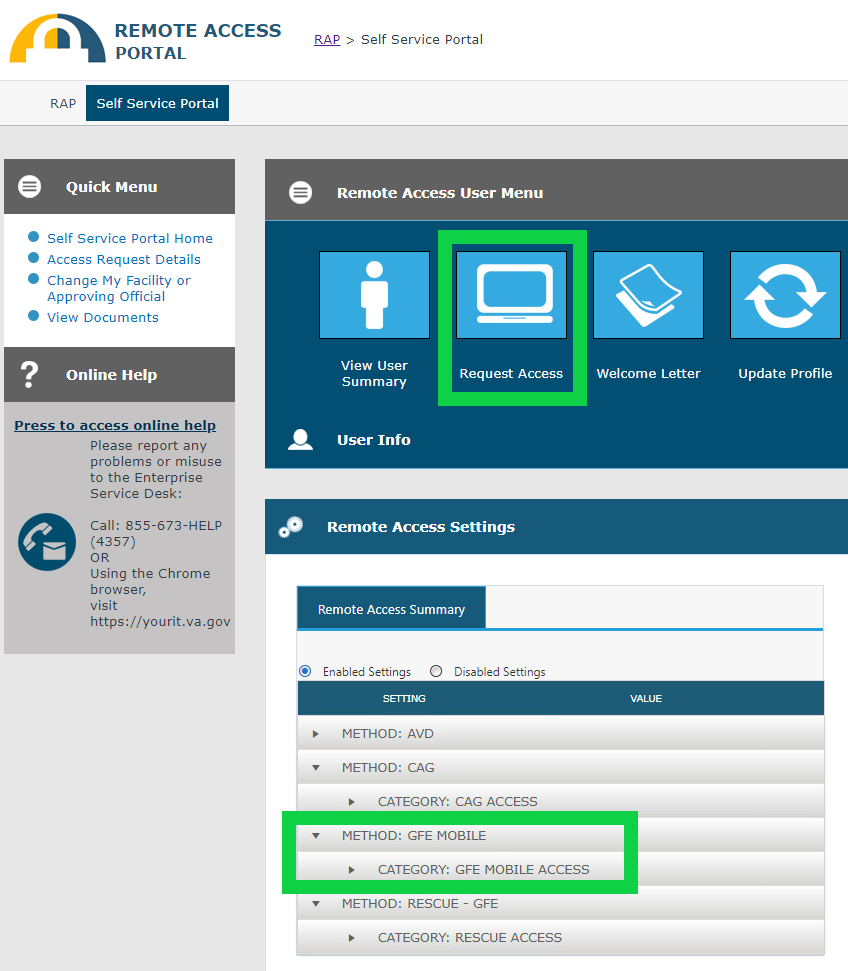
Verify GFE Mobile Access
- Visit the Remote Access Portal Self-Service, available here: https://vaww.ramp.vansoc.va.gov/SelfService [VA intranet].
- Confirm you have "GFE Mobile" access, or request it if needed:
- Fill out profile details if needed
- Select the iOS (iPhone/iPad) device option
- Requests are usually approved same-day
Refresh PIV Certificates
- Launch the 'PIV-D' app
- Tap 'Settings' at the bottom right, then tap 'Send Certificate'
Verify VA Device Compliance
Note: you should sign into your VA-issued iPhone iPad to confirm compliance at least once every 30 days.
- Launch 'Hub' app (pre-installed)
- Tap on your initials at the top right
- Tap 'This Device,' then tap 'Sync Device'
- Verify device is compliant:
- Launch 'Lookout Work' app (pre-installed)
- Tap 'Sync Device' or allow app to sync
- Verify device is compliant:
For additional assistance, please contact the Office of Connected Care Helpdesk at occhd@va.gov / 866-651-3180.