Cerner patients can be linked to Parable to enable automatic, two-way data transmission between the two patient profiles. Imaging and assessment data captured in Parable is automatically transferred to Cerner, and patient events and modifications in Cerner, such as name changes, discharges, and transfers, will update for these linked patients in Parable.
Note: Parable's interface with Cerner EHRM is only available at select facilities. To learn more about enabling this interface, please reach out to VA@parablehealth.com for support.
This guide covers:
- How to add or 'link' Cerner patients to Parable
- How Parable imaging and assessments are transferred to Cerner
- How Parable data can be attached to notes and messages in Cerner
Place Cerner Order to Link Patient
Note: Always adhere to local SOPs and guidance for placing Orders. Test patients can be used to validate workflows.
Patient profiles are transmitted to Parable by first placing an order in Cerner for Parable imaging. The patient profile will automatically be created in Parable and added to your Patient List.
Placing a Parable "Wound Photos" order for a patient in Cerner will automatically create that patient in Parable, and link the two patient profiles.
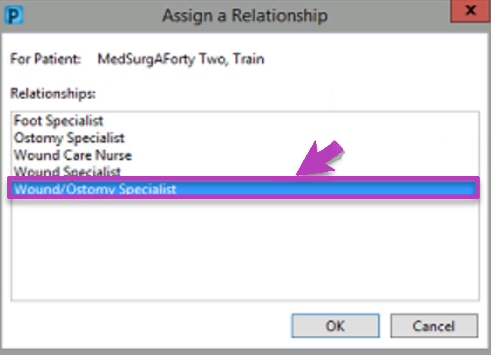
To start, first search for a patient in Cerner to open their chart, then assign your relationship to the patient.
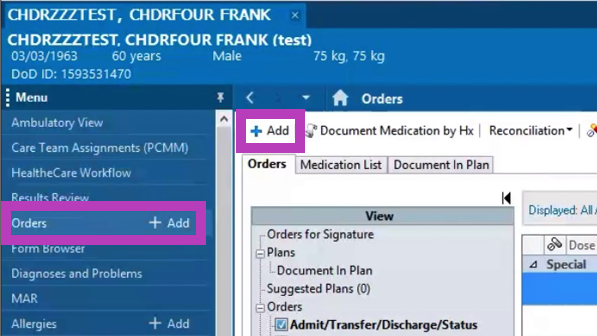
With a patient's chart open, navigate to Orders in the table of contents sidebar, then click the '+Add' button.
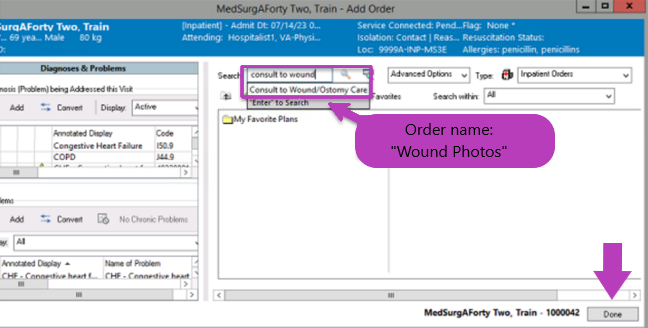
In the Add Order window, search for the "Wound Photos" order. Once selected, fill out required fields in the popup form, then click 'Done' to proceed.
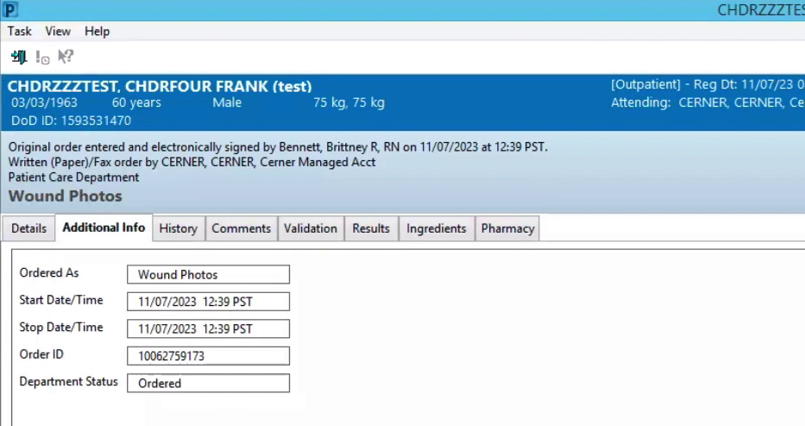
The order details will appear in a new window. Finish filling out and reviewing the order by switching between tabs, then click 'Sign' to submit the order.
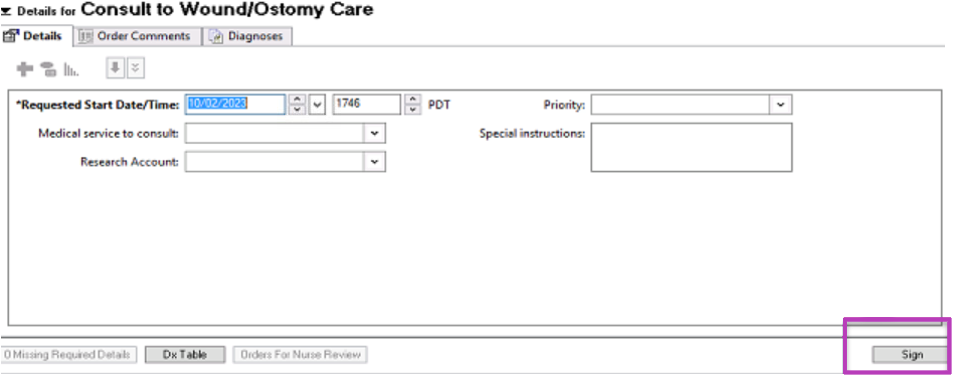
After placing your order, log into Parable on the web or mobile app and confirm you can lookup your linked patient.
Complete a Parable Assessment
All Parable assessment data, include a PDF of the assessment report, along with primary photos and supporting photos as separate JPEGs, are automatically transferred to Cerner when an assessment is submitted (and synced) in the Parable mobile app. Any assessment that is submitted (with or without imaging) will be transferred.
Make sure you fully complete the assessment in Parable and tap 'Submit' on the final page.
Note: mobile assessment syncing requires internet connectivity; any assessments completed while offline will sync once a connection is available (keep the Parable app open).
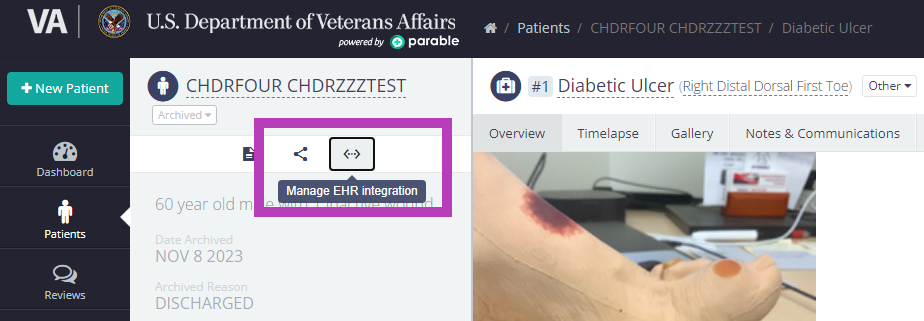
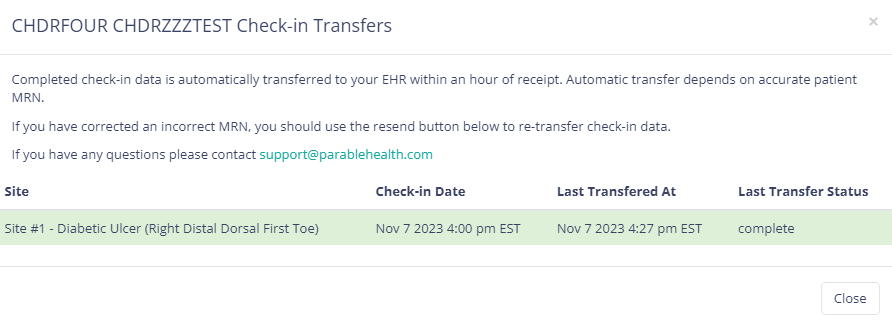
On the Patient Profile page in Parable, you can review a log of transfers by clicking on the 'Manage EHR Integration' button below the patient's name.
A Re-Send button will be available for failed transfers (i.e. no matching MRN).
Review Parable Data in Cerner
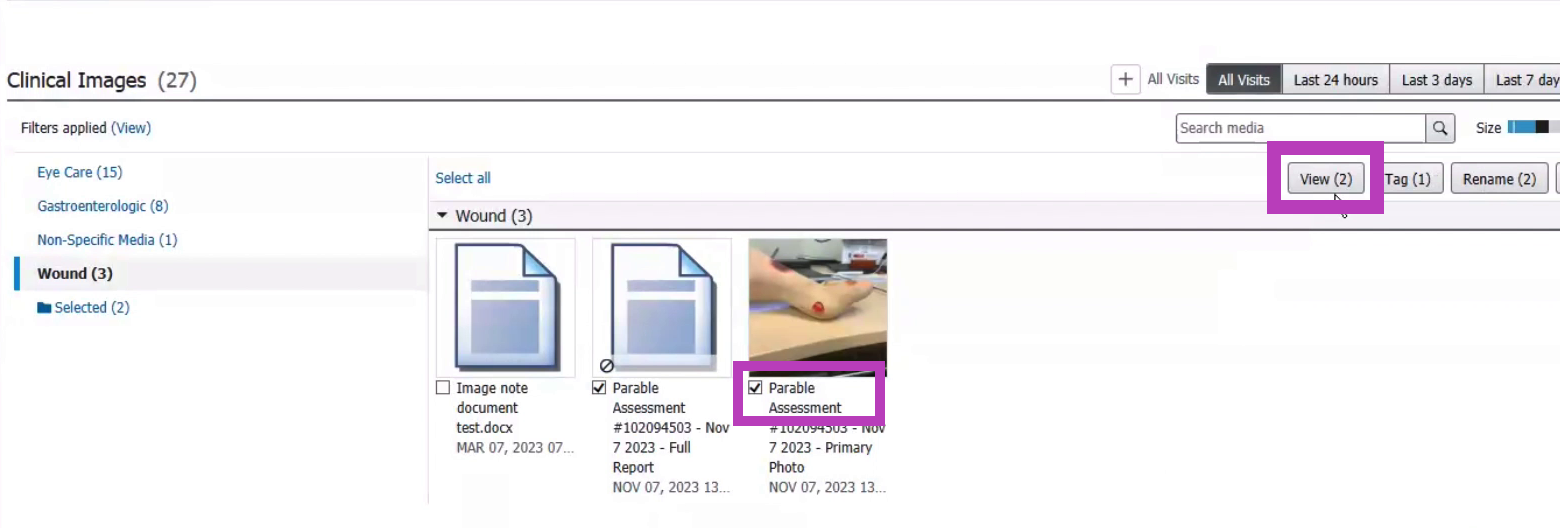
Once transmitted to Parable, your assessments can be reviewed in Cerner. Access the patient's chart in Cerner and navigate to Clinical Images, then select the Wound folder. Parable assessments, including images and PDF reports, will be located in this folder.
Use the search bar in the top right to filter contents in a variety of ways:
- enter 'Parable' for all transfers to this chart
- enter the a specific Parable case number to filter for an individual wound site
- enter a specific date, month, or year to filter by timeframe
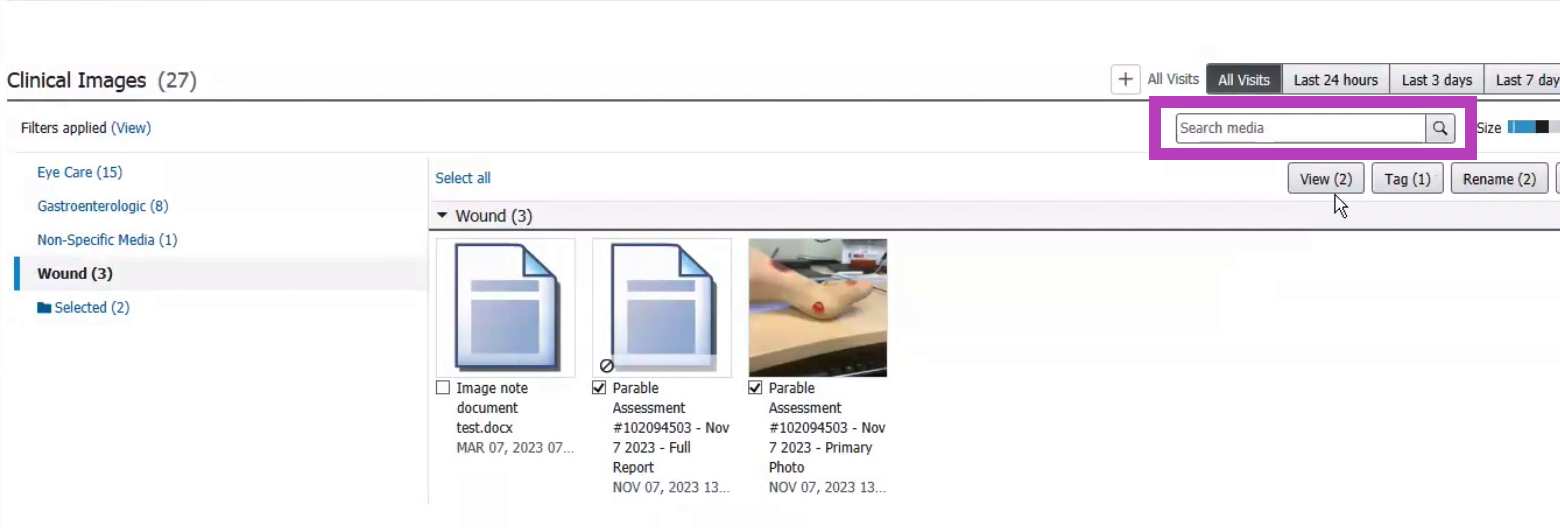
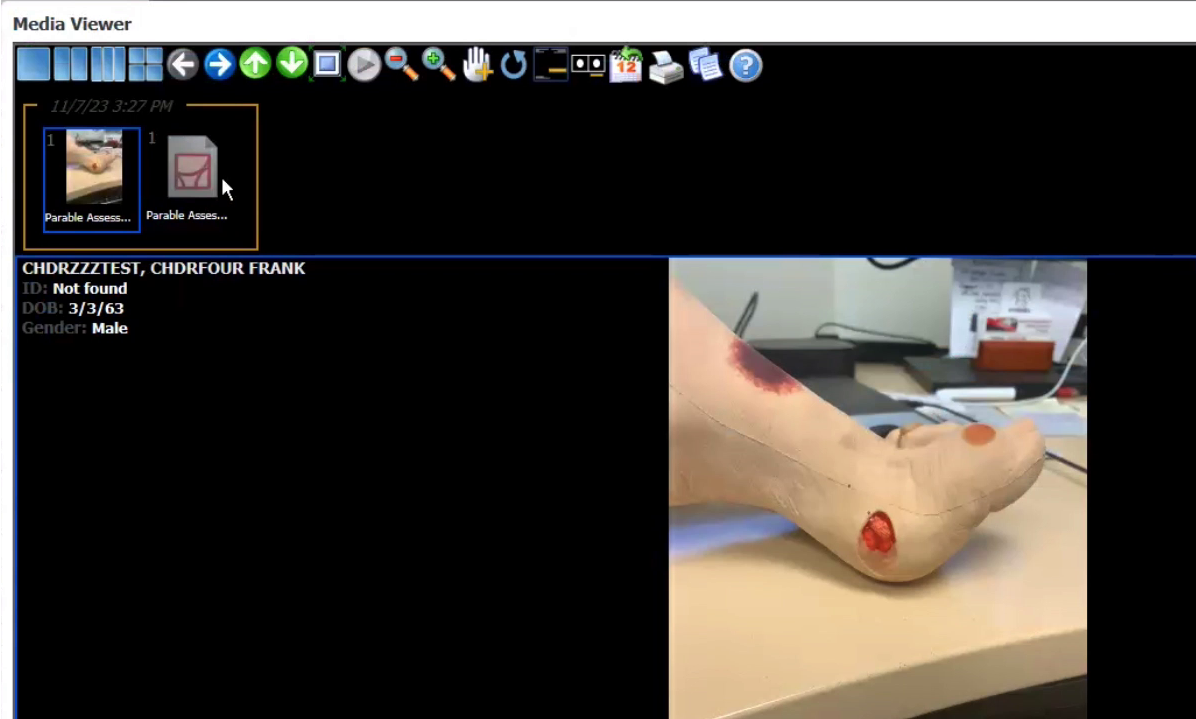
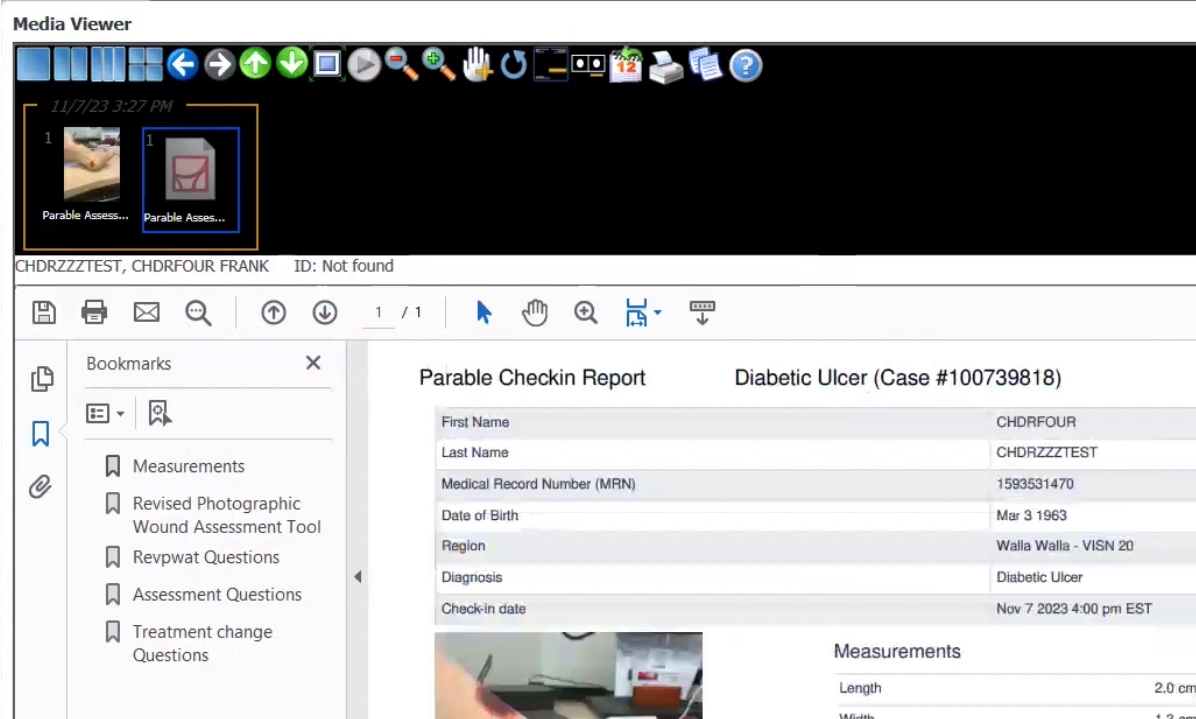
Select one or more assessments using the thumbnail checkbox, then click 'View' to open the Media Viewer. Both images and PDF reports can be viewed.
Attach Images to Notes and Messages
You can include assessment data from Parable in notes and messages in Cerner.
Notes
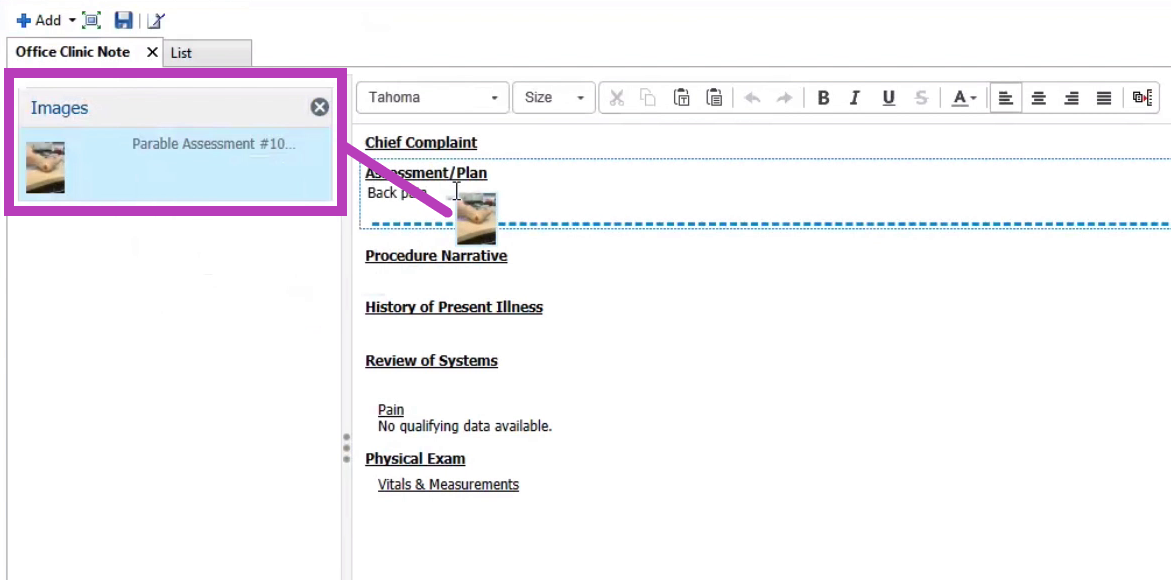
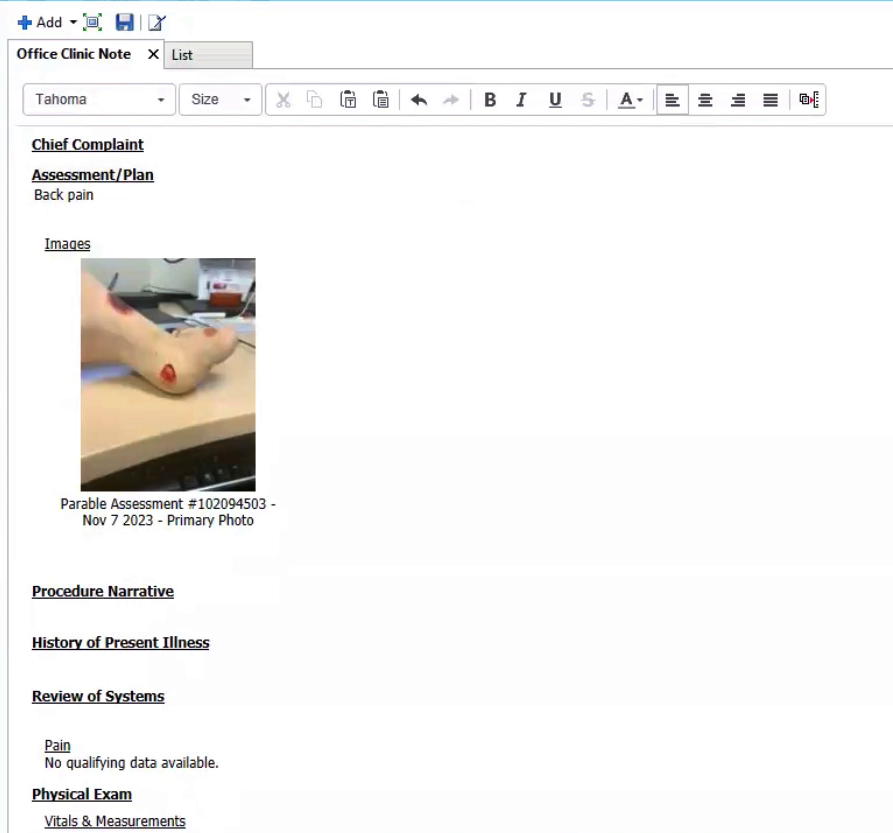
For notes, first navigate to Clinical Images > Wound and check the assessments you wish to include in your note. Next, find the Create Note section of your workflow sidebar and select a note type to begin composing a note.
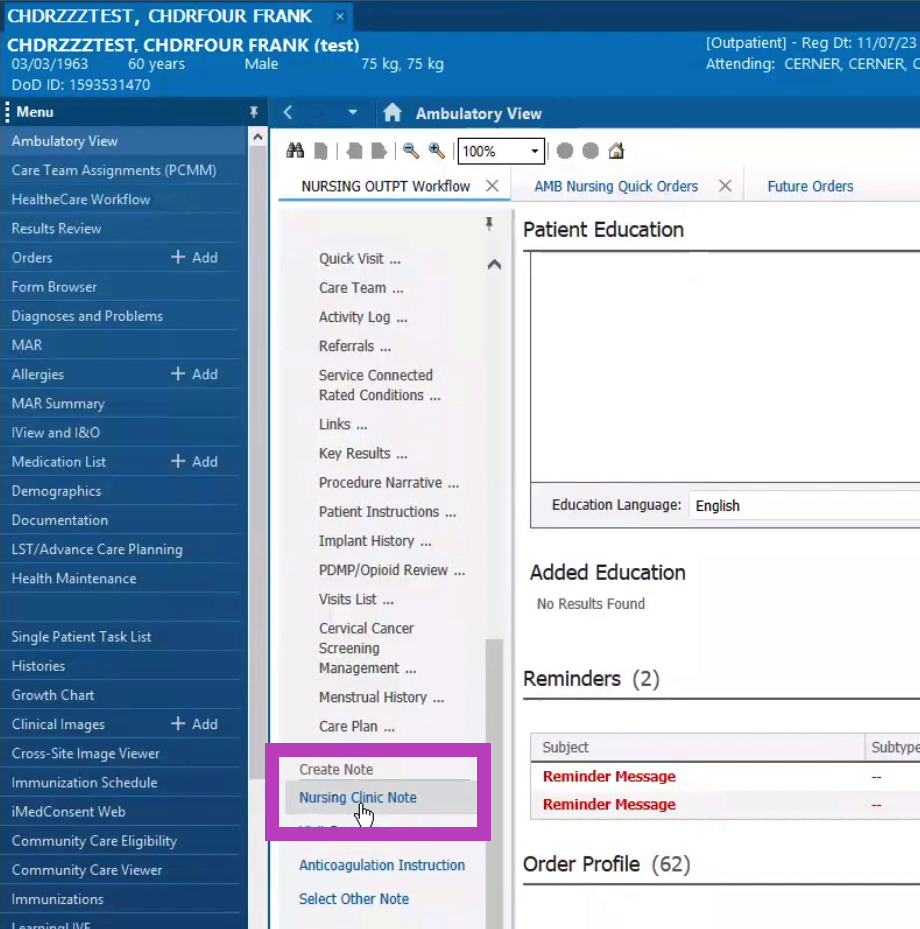
Your previously selected assessments will be included in the sidebar on the left, and can be clicked-and-dragged anywhere into the note.
Messages
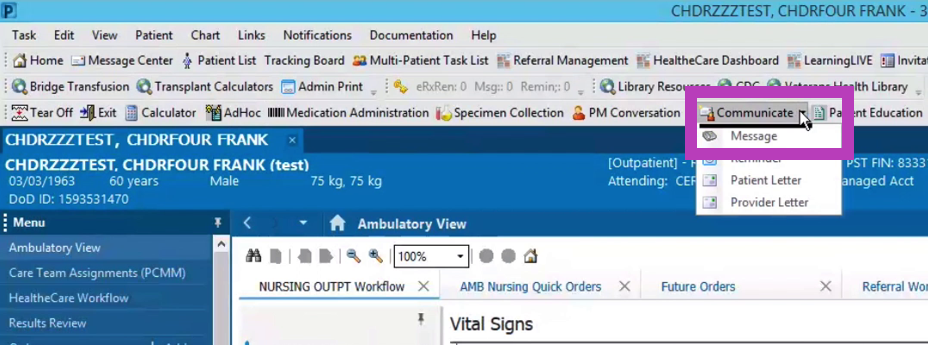
Select Communicate > Message from the top toolbar.
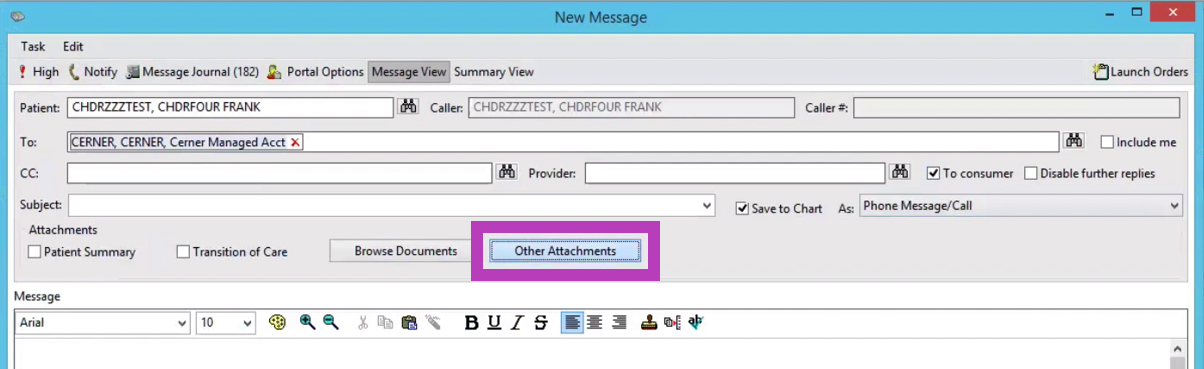
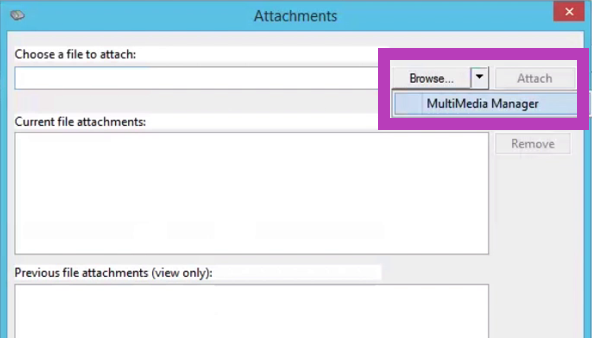
In the New Message window, click the 'Other Attachments' button, then click on the dropdown next to 'Browse' and select MultiMedia Manager.
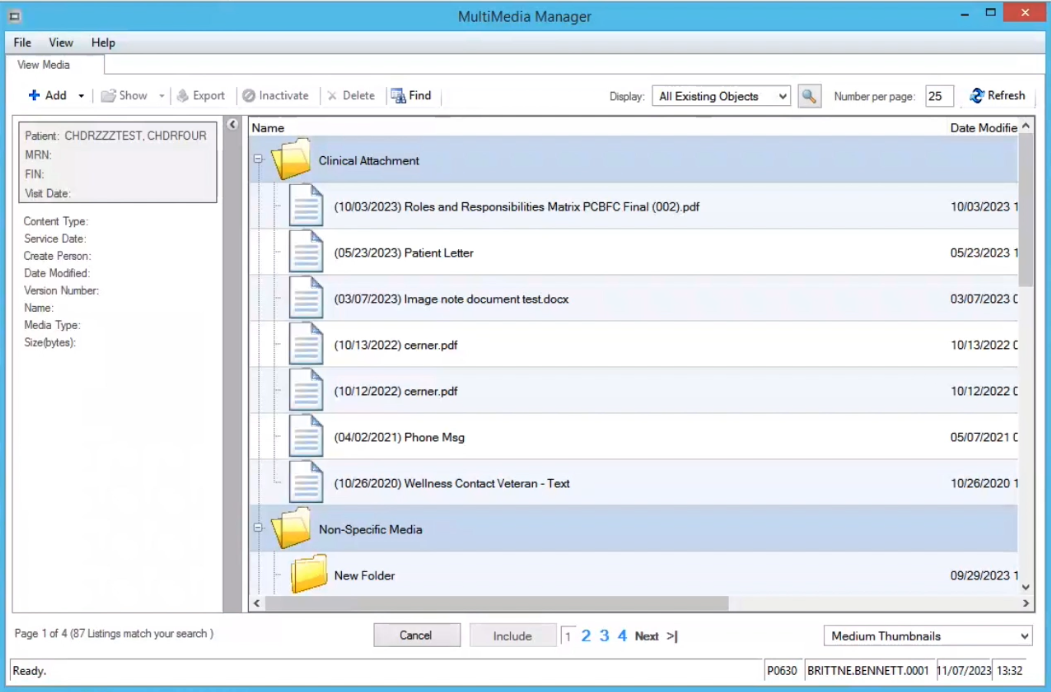
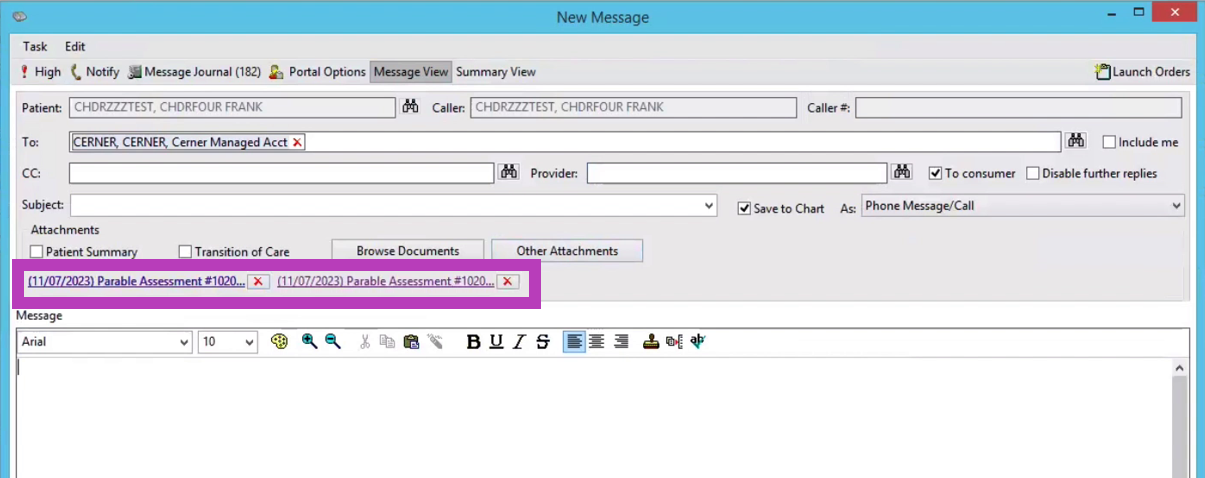
Find and select Parable assessments in the MultiMedia Manager window. These will be included as attachments in your messages.
Order Review
To Review details for an order placed in Cerner, navigate to Orders in the Cerner menu, locate the "Wound Photos" order, and then right-click to select Order Information.
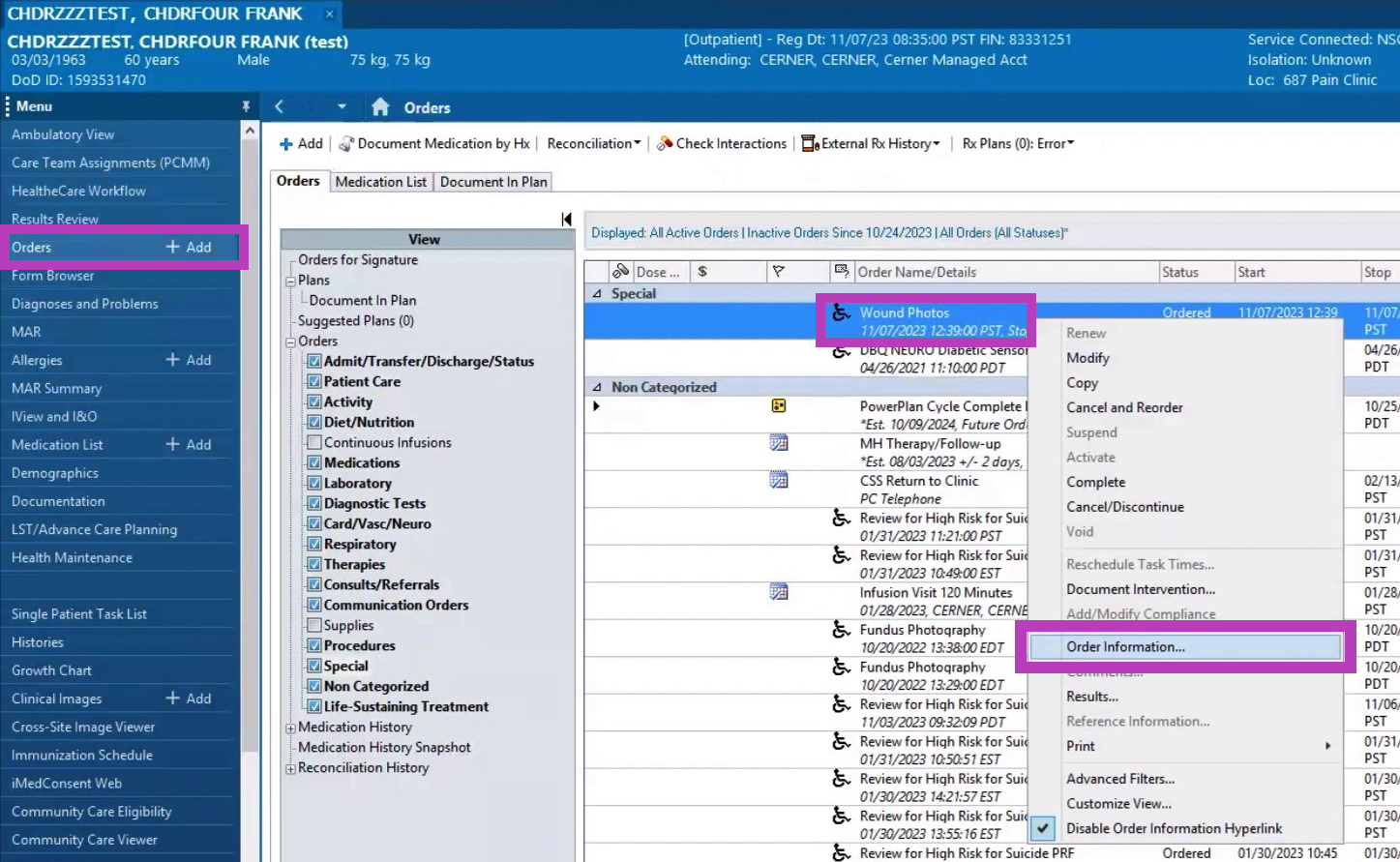
On the Order Information page, you can switch between tabs to review relevant details.