Note: a comprehensive Calibration Guide from Structure, the manufacturer of the 3D sensor and the Calibrator app, is also available. Please refer to Alternate Step 2: Indoor Calibration Mode to begin with:
Introduction
Parable’s software component enables the identification and measurement of wound boundaries based on the inputs received from Parable's hardware component: the Structure Sensor, a 3D infrared sensor attachment for iOS devices (optimized for various models of iPad).
In order to capture 3D smart scans in the Parable app, the 3D sensor must be properly calibrated (via the separate Calibrator app), and securely attached to the iPad (using the included bracket). Note that the Structure Sensor uses separate cables for charging and for connecting to the iPad.
Note: the 'Calibrator' app will not launch without a connected 3D sensor.
'Calibrator' App
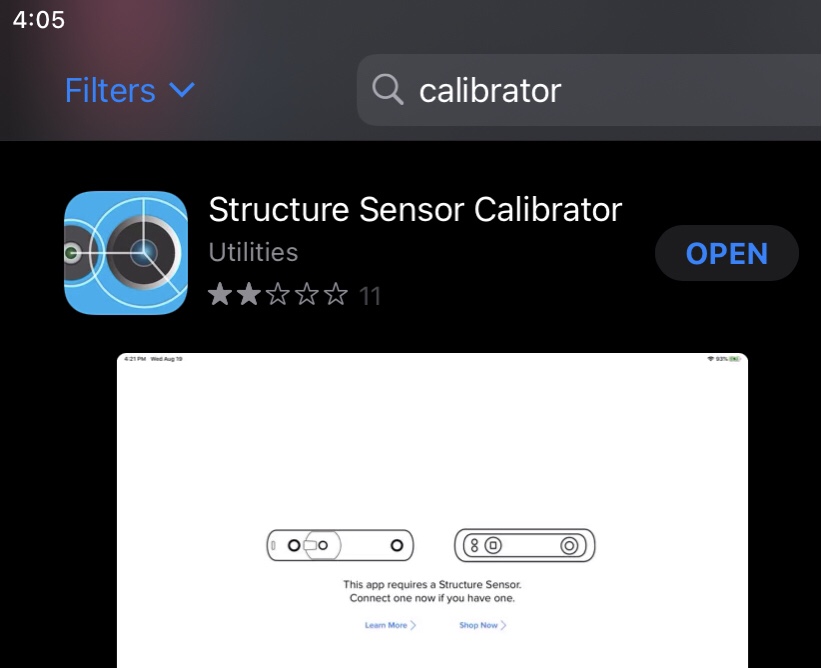
Calibration of the 3D sensor attachment used by Parable requires the use of a separate 'Calibrator' app, available on the iOS App Store. This app does not require any accounts or log-ins, and is strictly used to calibrate the hardware attachment.
Attaching the 3D Sensor
The Structure Sensor hardware component should be properly attached to the iPad using the included attachment bracket before any calibration or scanning. See the Attaching the 3D Sensor article for instructions.
Calibration and Stereo Image Refinement
'Calibrated' means that 3D depth feed from the Structure Sensor is fully-aligned with the color feed from your iPad camera. This is important for accurate wound measurements, as the area you designate to measure will fully align with the underlying surface topography.
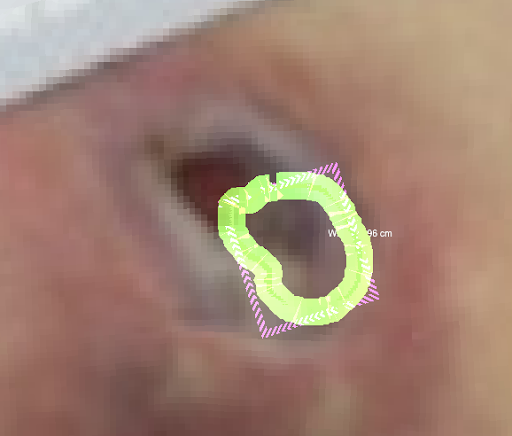
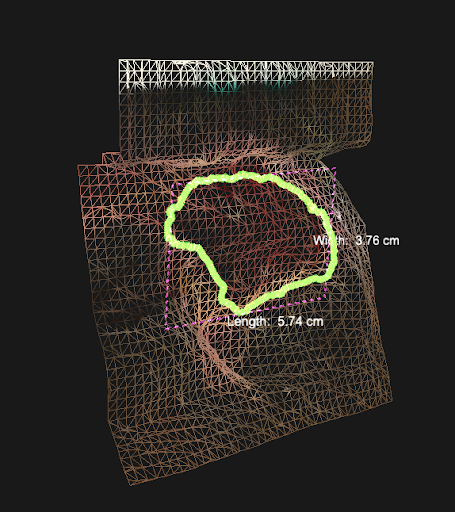
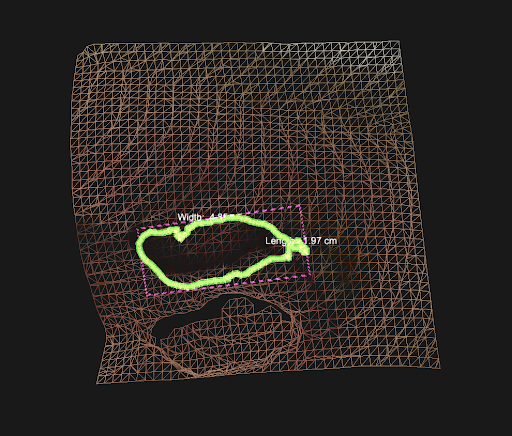
Examples of Visible Misalignment
Calibration of the sensor should be performed the first time you install the Structure Sensor on an iPad, and whenever you notice issues such as misalignment (between the wound/lesion site and the scanned 3D topography), poor depth capture, loss of tracking, or a flickering scan cube. Stereo refinement of the sensor's cameras should also be performed to resolve such issues.
Calibration
During a smart scan, a notification box may appear on-screen to indicate that calibration is needed.
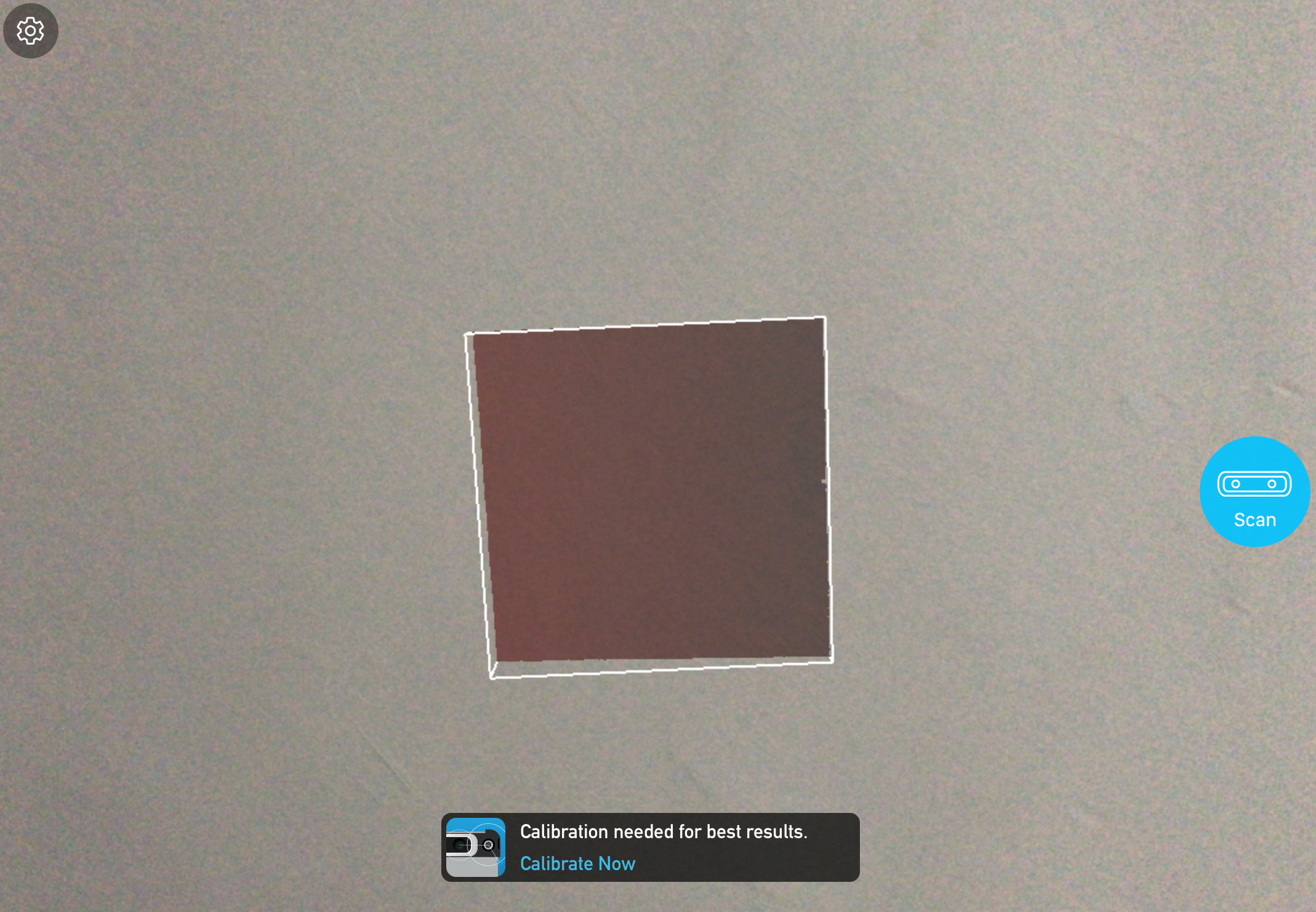
Tapping the calibration notification will guide you to the App Store to install the required 'Structure Sensor Calibrator' app.
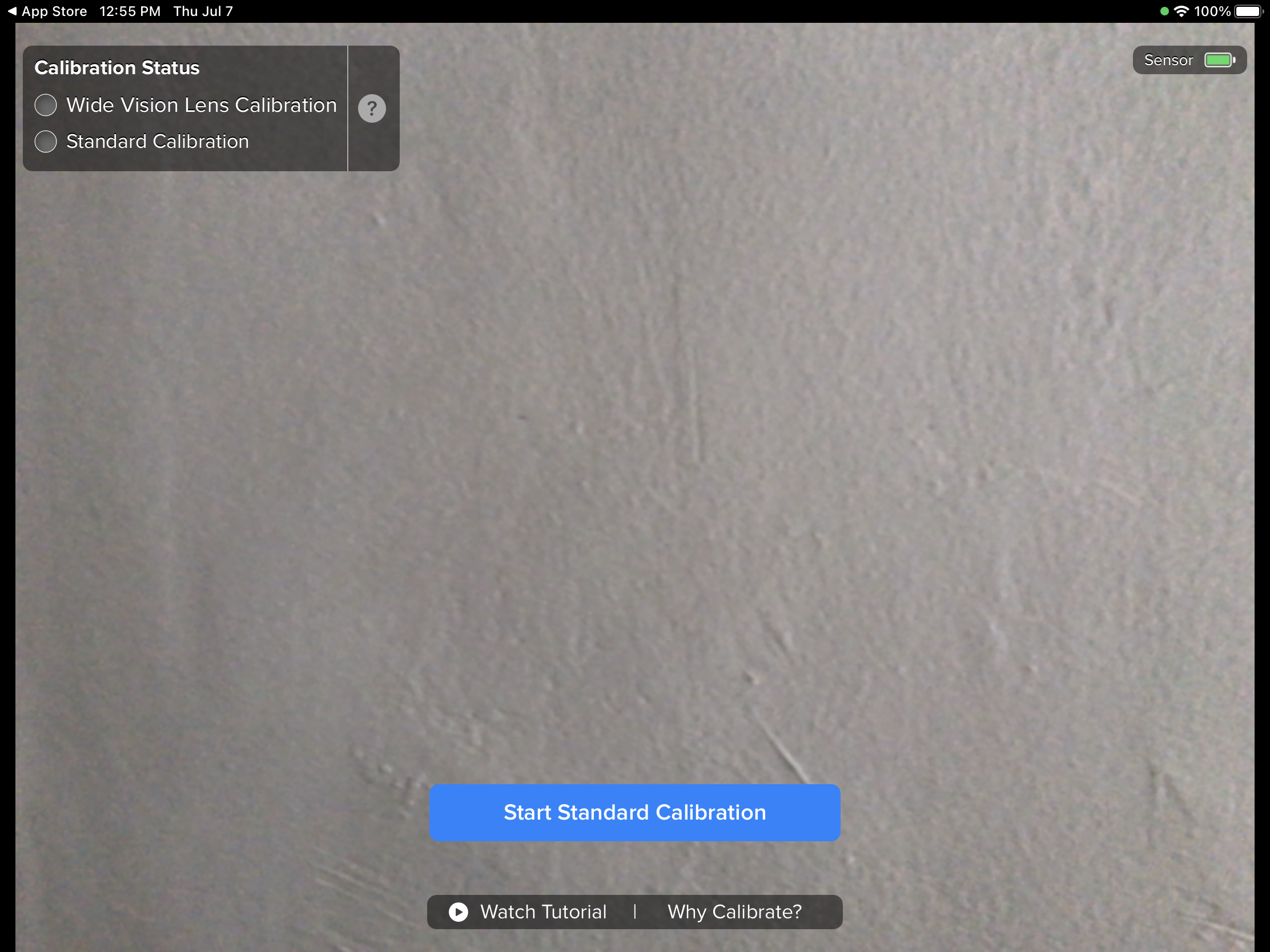
Make sure the Structure Sesnor is charged and connected to the iPad before launching the 'Calibrator' app. Tap 'Start Standard Calibration' at the bottom of the screen to begin the process.
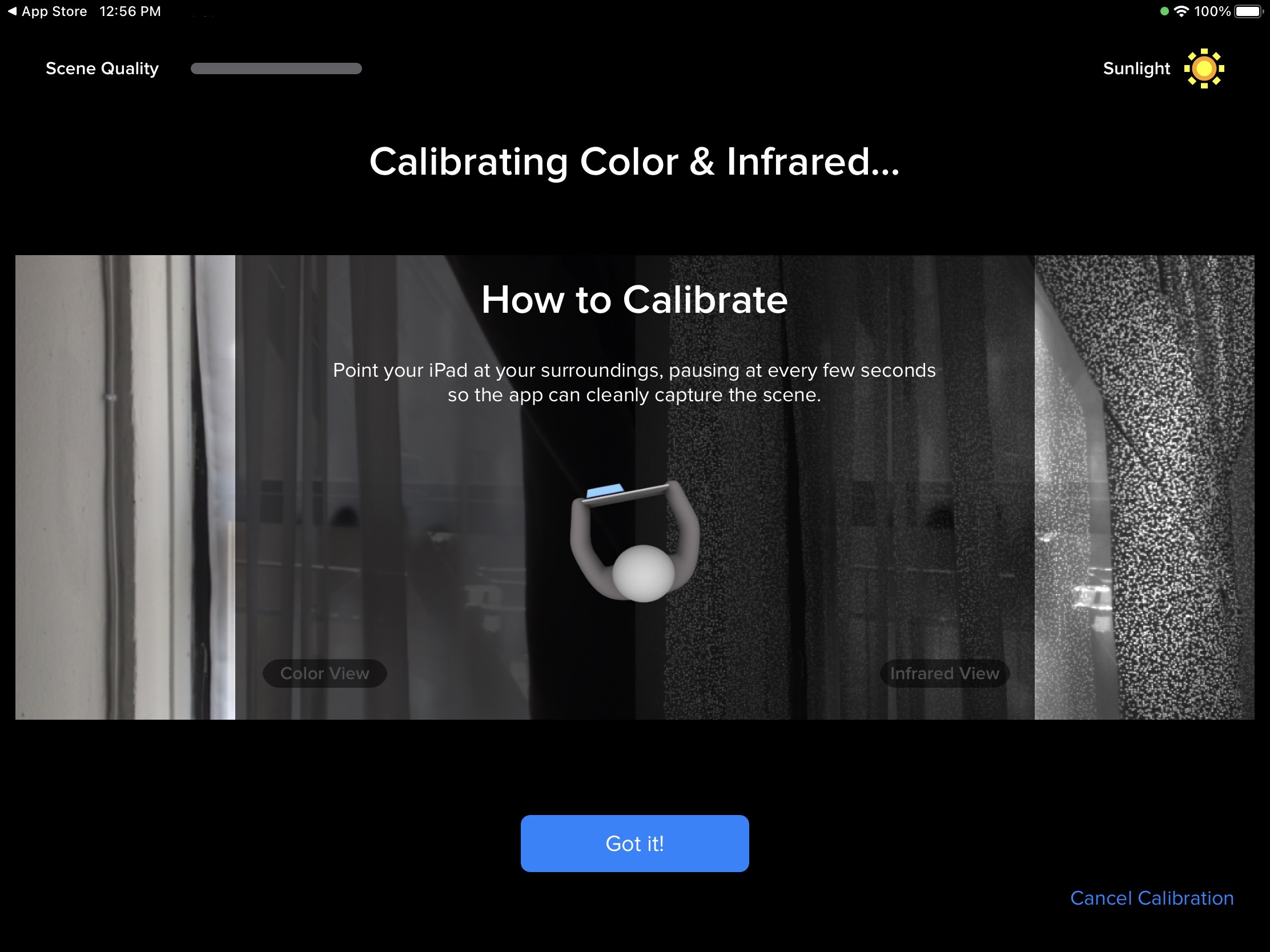
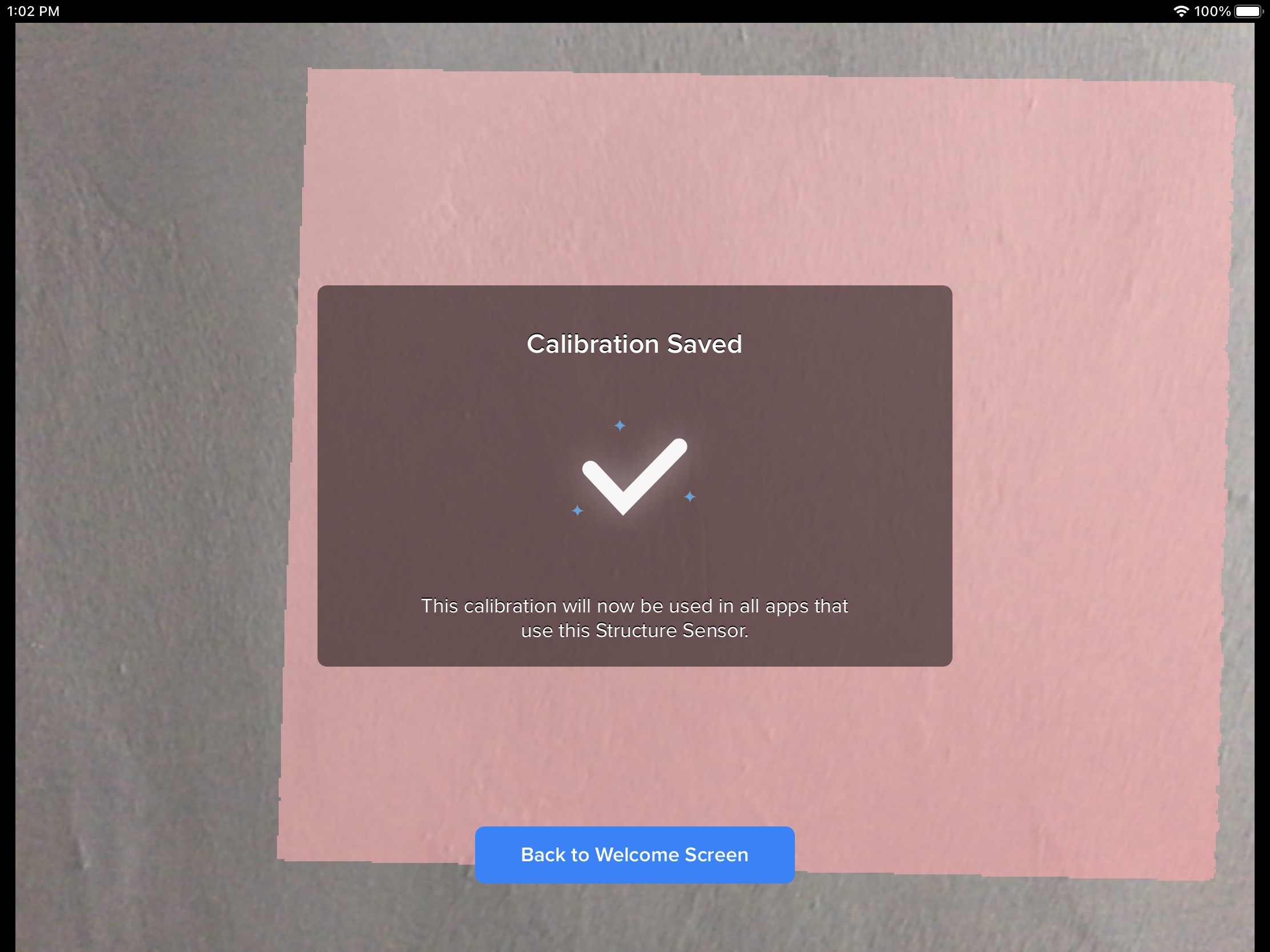
On-screen instructions will guide you through the calibration process. The app will indicate when calibration is complete and prompt you back to the welcome screen.
Stereo Image Refinement
The stereo cameras in the Structure Sensor may also require tuning if you experience issues such as spotty and inconsistent depth capture, flickering depth data, or loss of tracking when attempting a 3D scan.
The 'Calibrator' app is also used for stereo refinement.
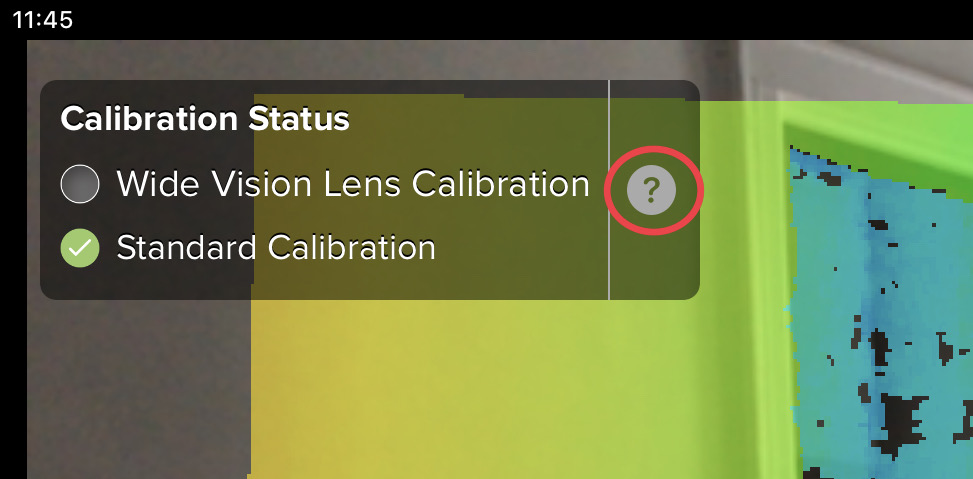
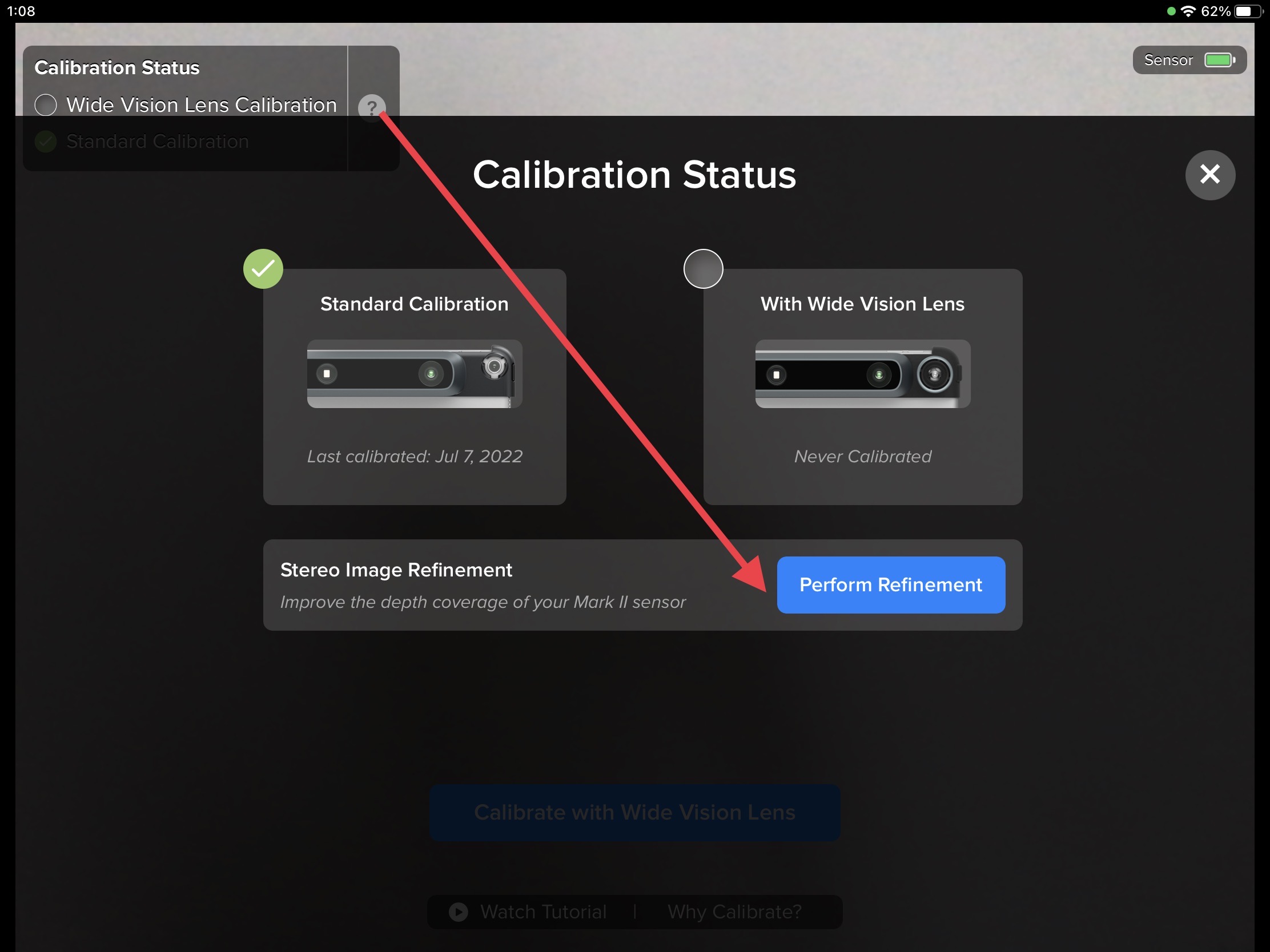
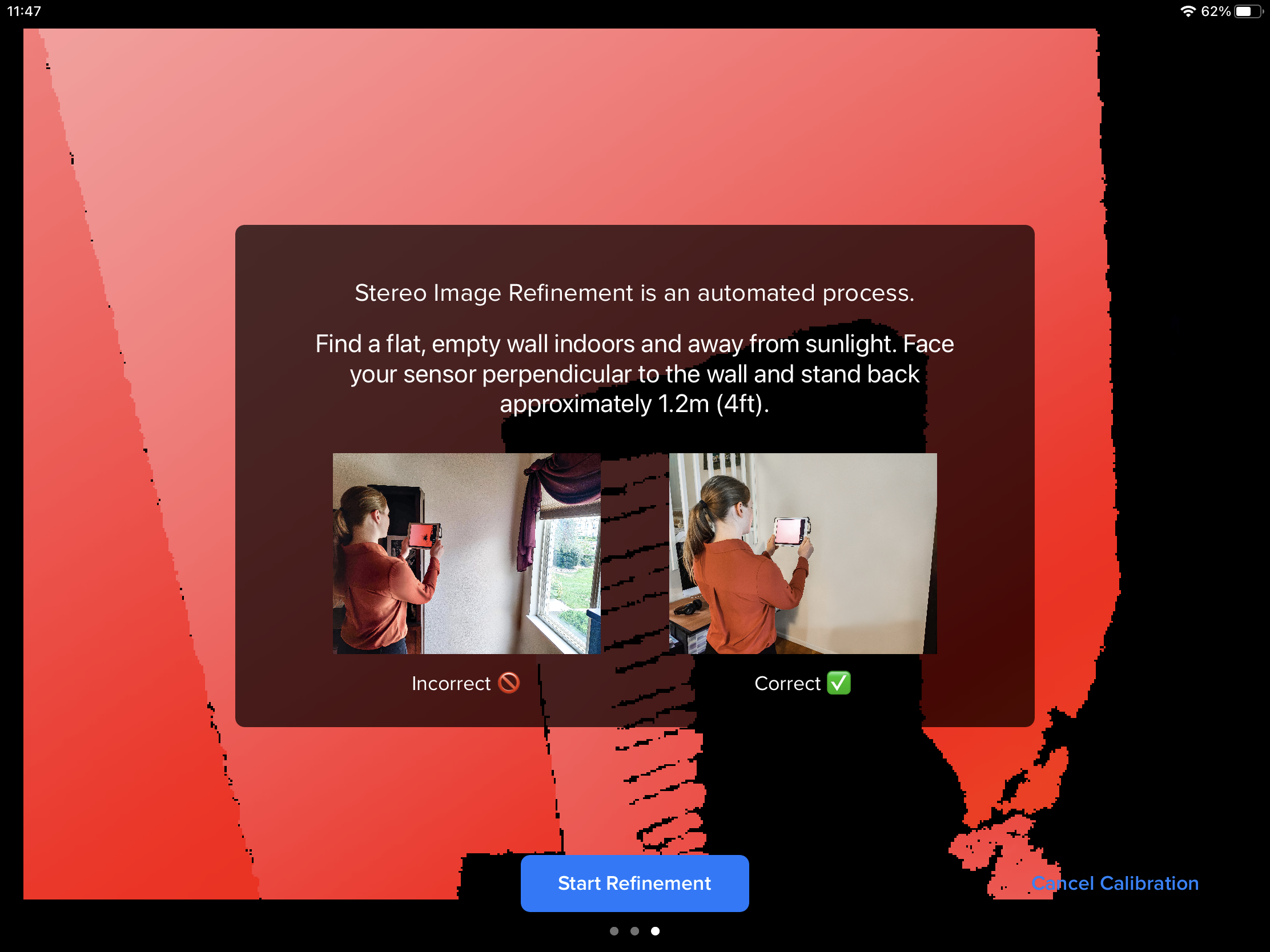
On the main screen of the 'Calibrator' app, tap the "?" icon bubble in the top left corner (app may require updating if this does not appear), then tap 'Perform Refinement' in the new window.
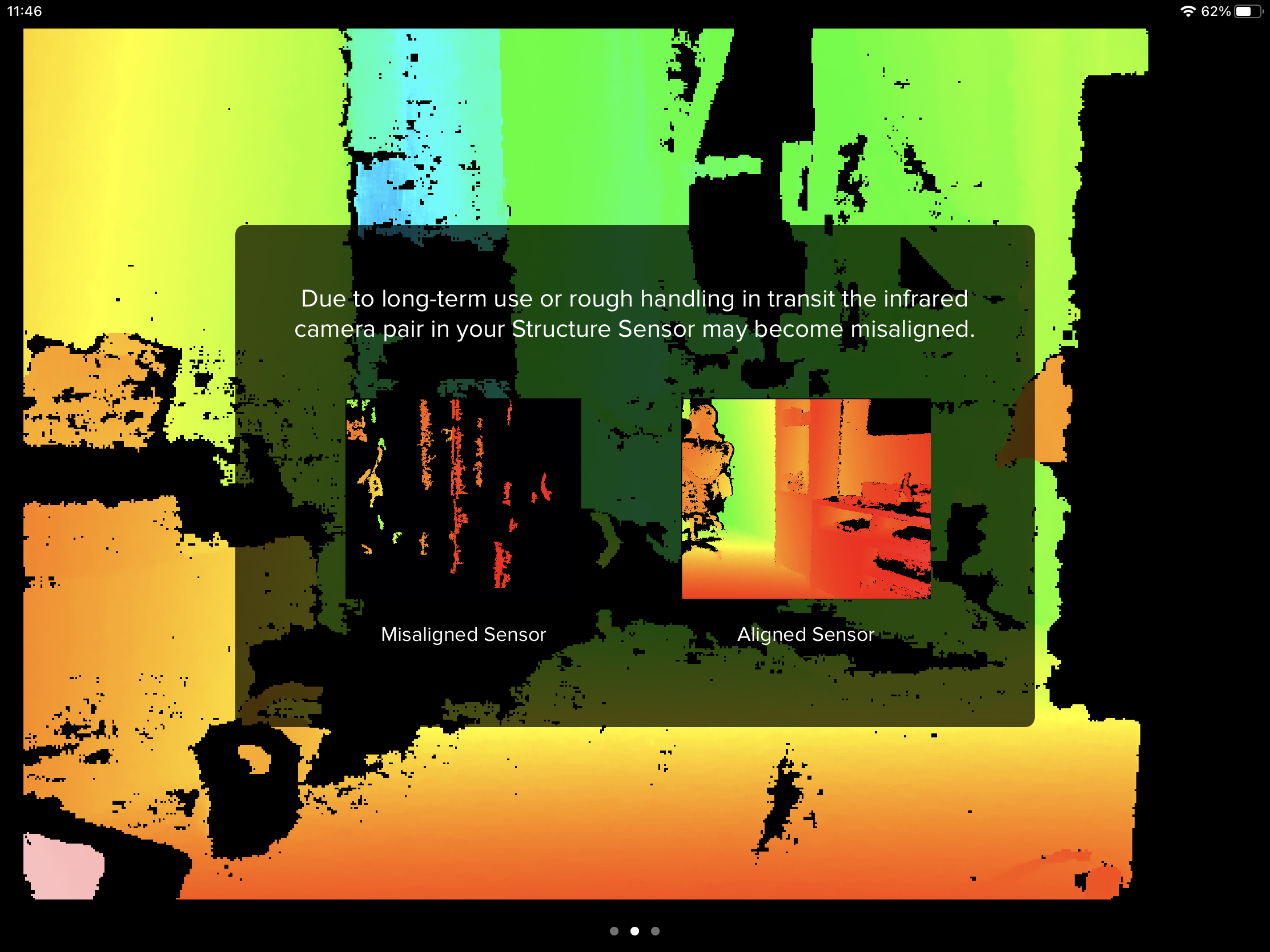
Swipe left to advance through the in-app guidance, then tap 'Start Refinement' to initiate.
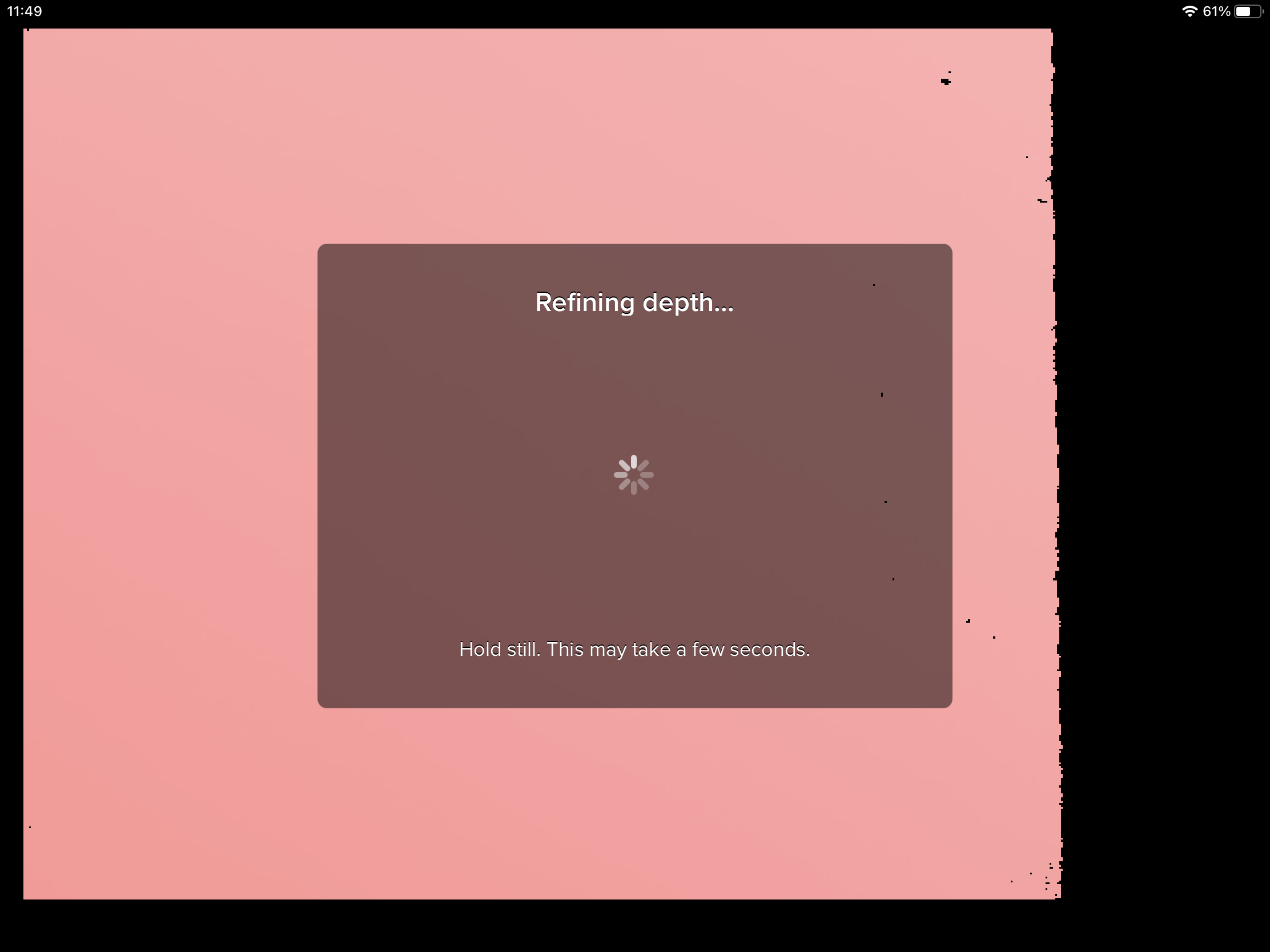
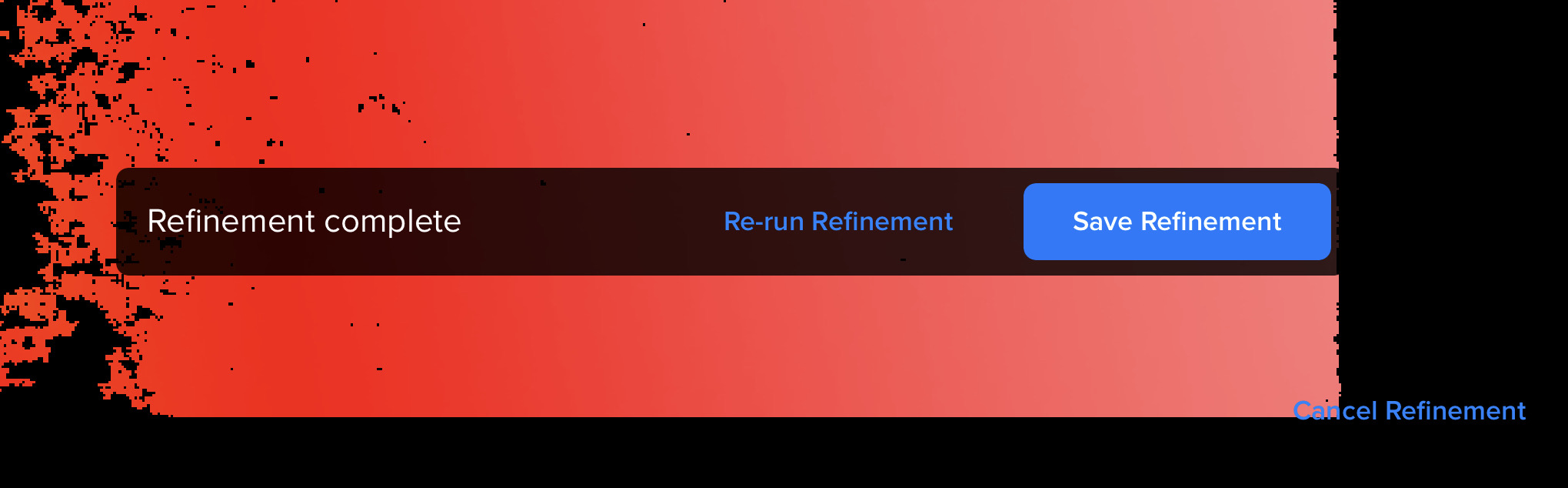
After completing the process, you may re-run, cancel, or save the refinement.
Once you are done with sensor calibration and stereo image refinement, close the 'Calibrator' app and start a new 3D scan in the Parable app to confirm that issues with the sensor are resolved.
Upgrading Firmware
Occasionally, the 3D Sensor may require a firmware upgrade. A notification box will appear at the top of the screen during a 3D smart scan:
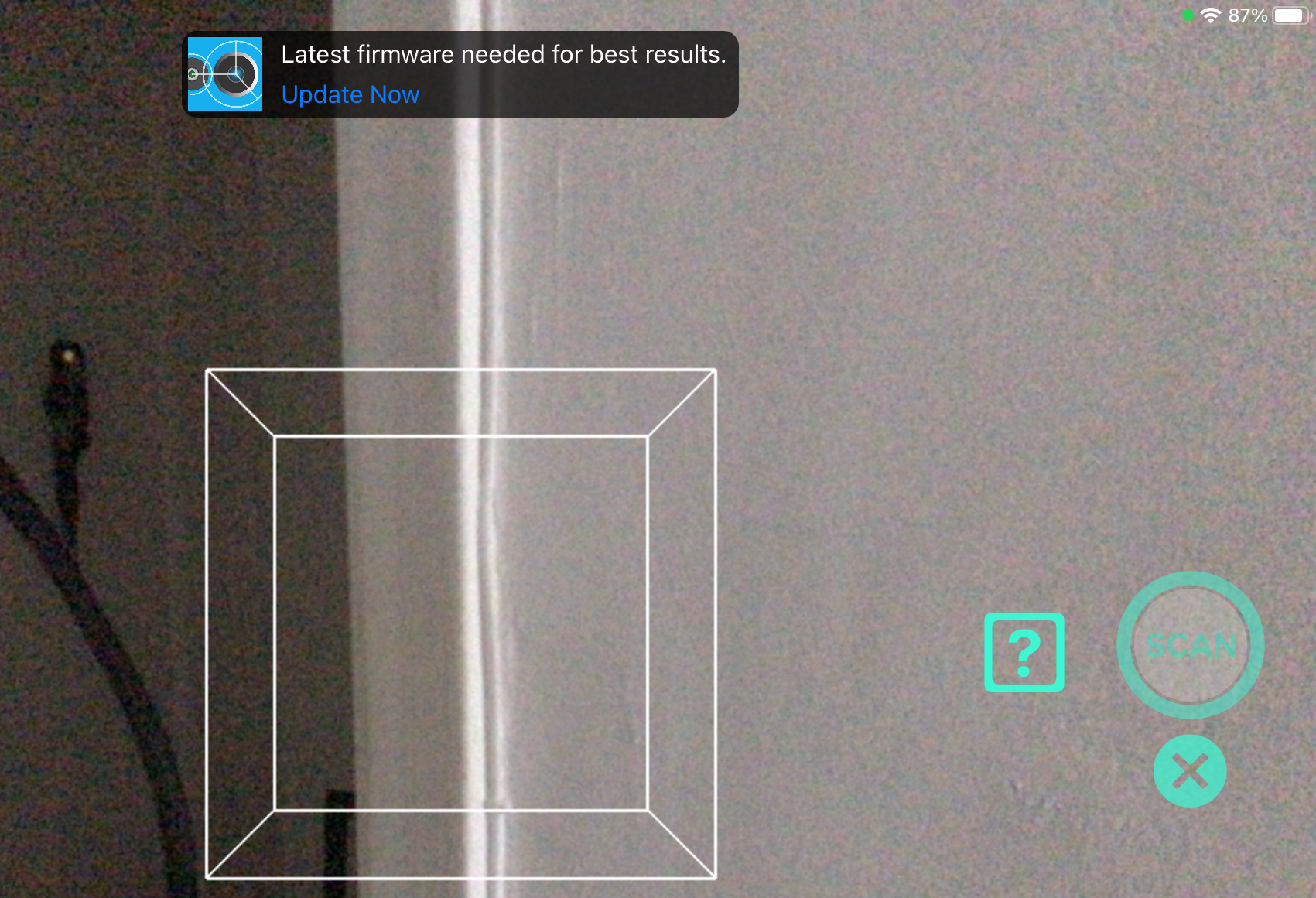
Tap the notification and then press the "Upgrade Firmware→" link at the bottom of the screen. This will guide the user to install the required 'Structure' app. Firmware can only be updated from within the Sensor's native app.
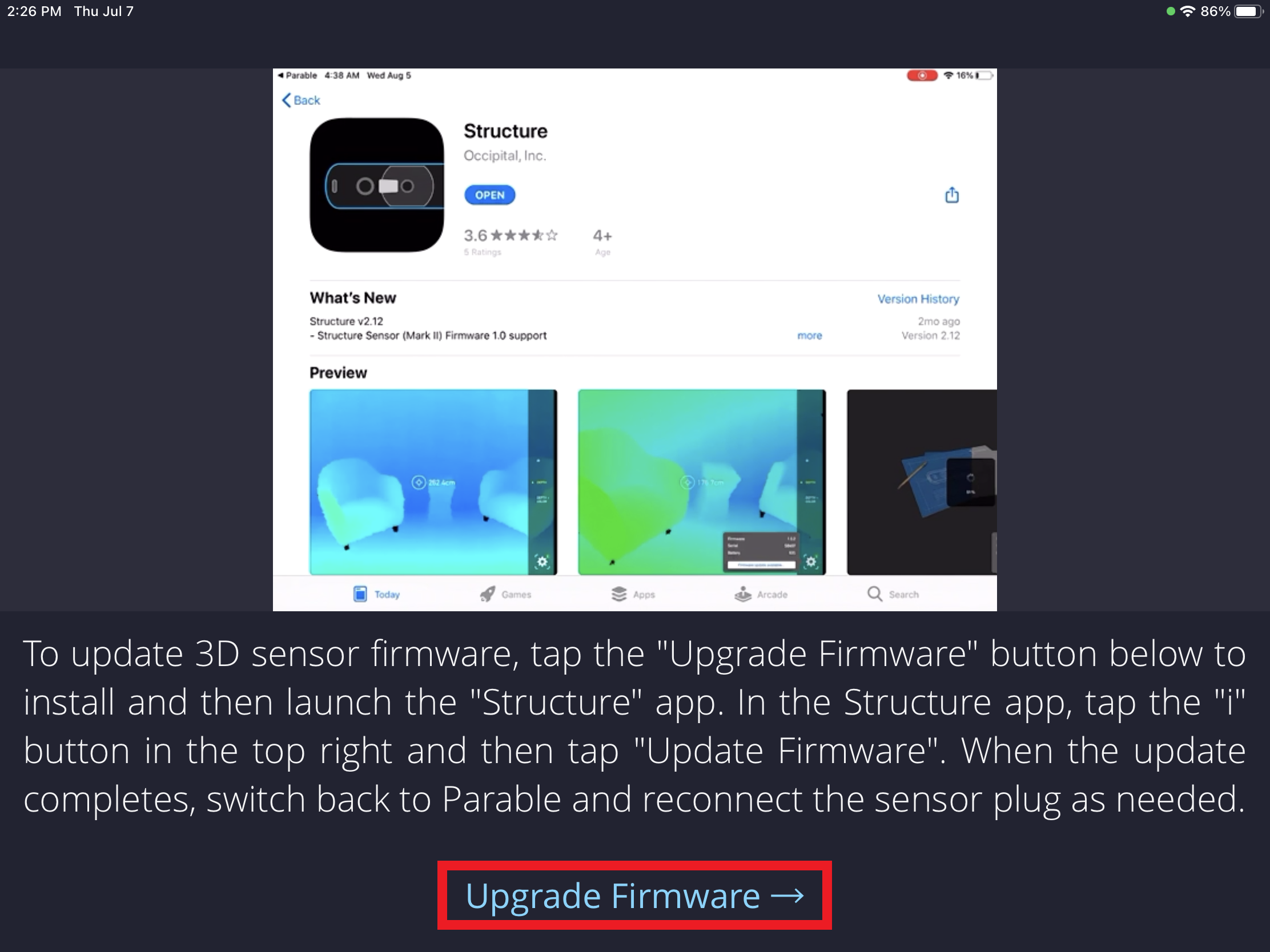
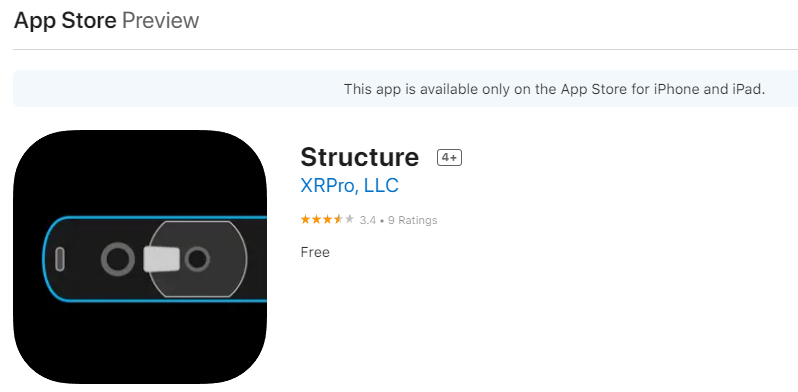
Launch the 'Structure' app, then tap the "ⓘ" icon bubble on the top right. Select the "upgrade firmware" option (which will appear where the firmware version is shown) to automatically apply the update.
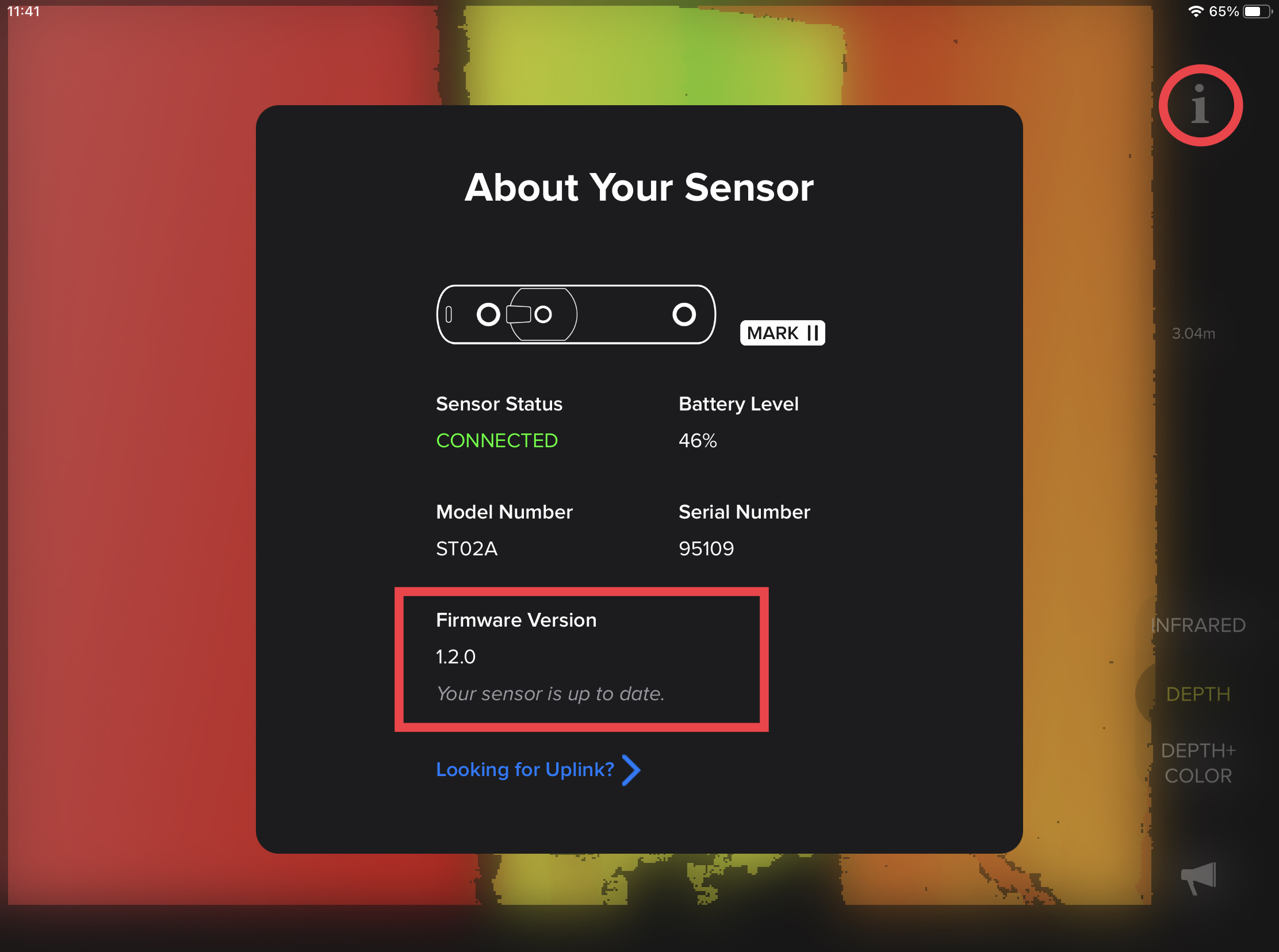
Close the 'Structure' app when done, then navigate back to the 3D scan screen in the Parable app to confirm that the firmware upgrade notification box no longer appears.
Note: If there is an issue with upgrading the firmware, or if there is no connectivity to install the 'Structure' app, you may still proceed with the 3D scan process.
Technical Specifications
For 3D sensor hardware details and a list of compatible iPad models, consult the appendix of VA Telewound Toolkit documentation.
3D Smart Scan
For information about capturing 3D smart scans as part of a wound/lesion site assessment in Parable, check the Smart Scan (3D) article.
Note: The 2D 'Smart Photo' feature does not require any sensor hardware.
Procurement
An organization's telehealth coordinator is recommended as the most appropriate contact for inquiries about Parable hardware and license procurement.
Troubleshooting
See the Parable guide for 3D Structure Sensor Hardware Troubleshooting.
References
Parable Health - Calibrating 3D Sensor
Parable Health - Attaching 3D Sensor