Patient List
The default view when logging into the Parable mobile app is the Patient List.
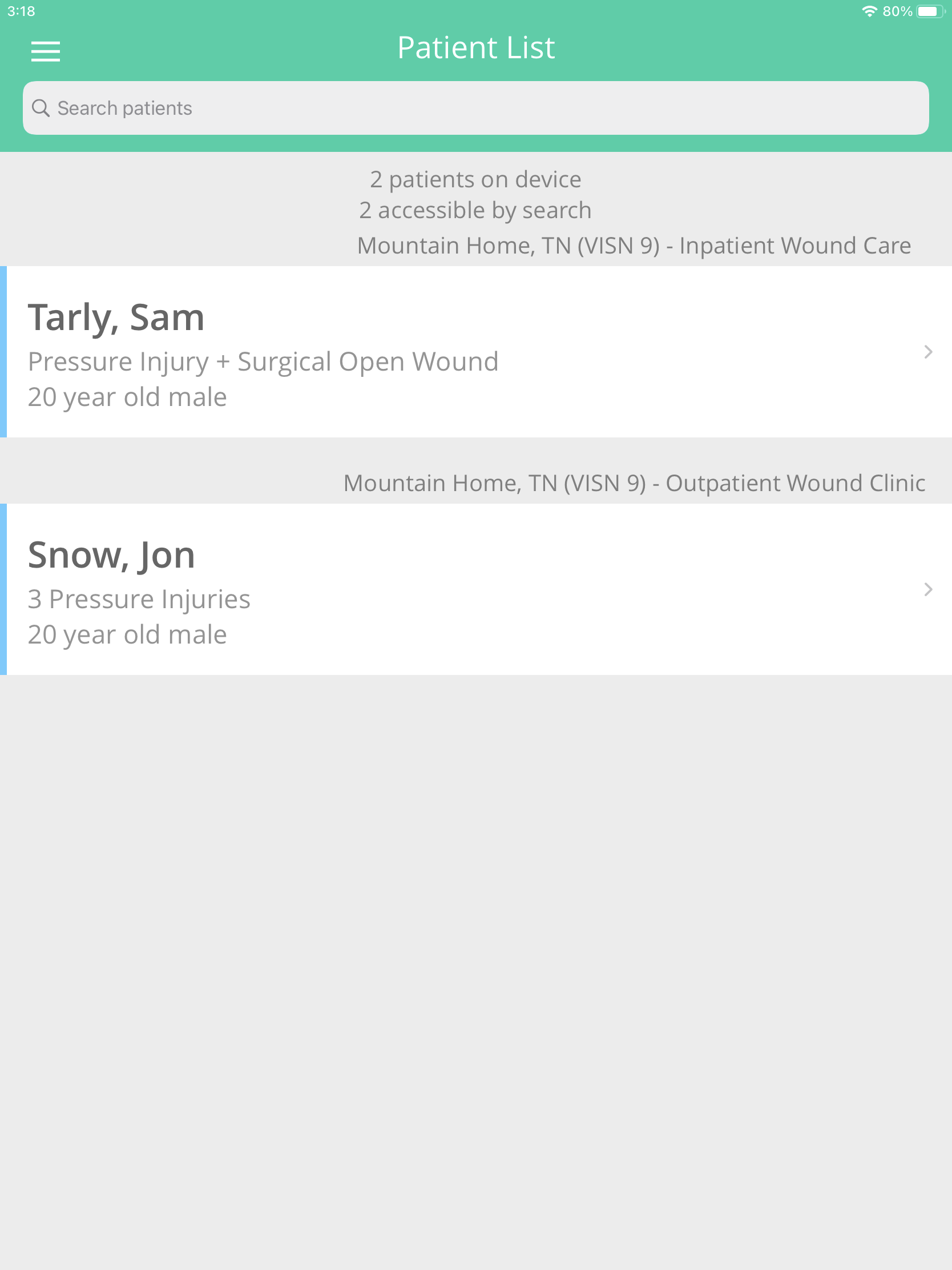
Tap on a patient to navigate to the Patient Profile screen. To add a new patient, see the Creating Patients and Cases article. You can also use the search bar at the top of the Patient List to find patients.
Patient Profile
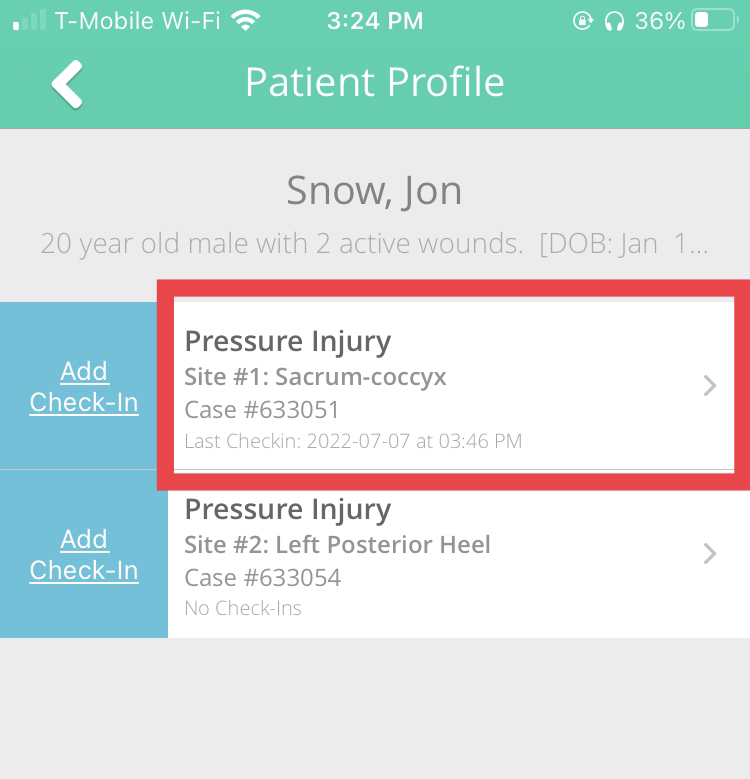
The Patient Profile screen displays a list of all active cases (wound/lesion sites managed in Parable), as well the option to add a new site.
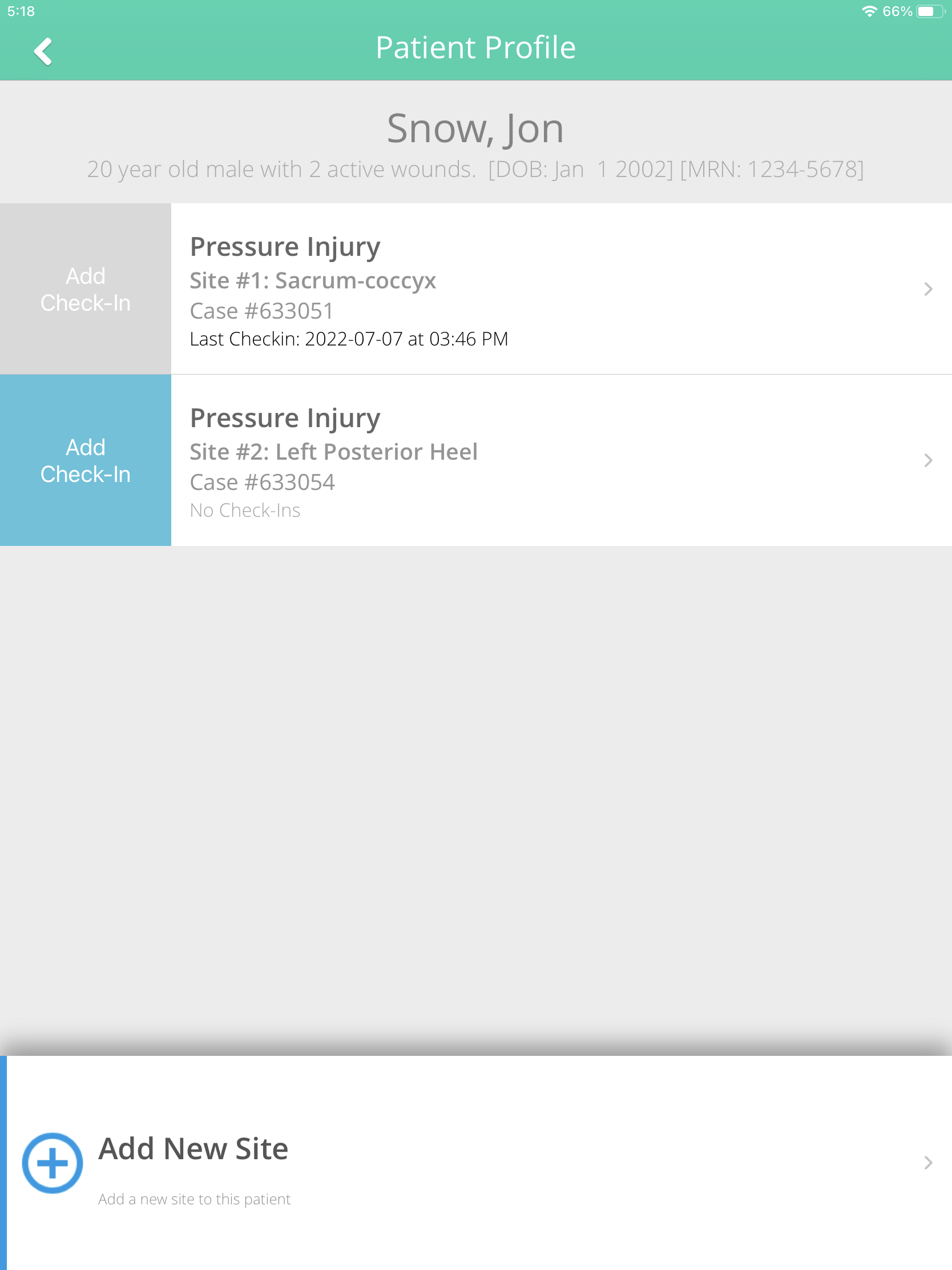
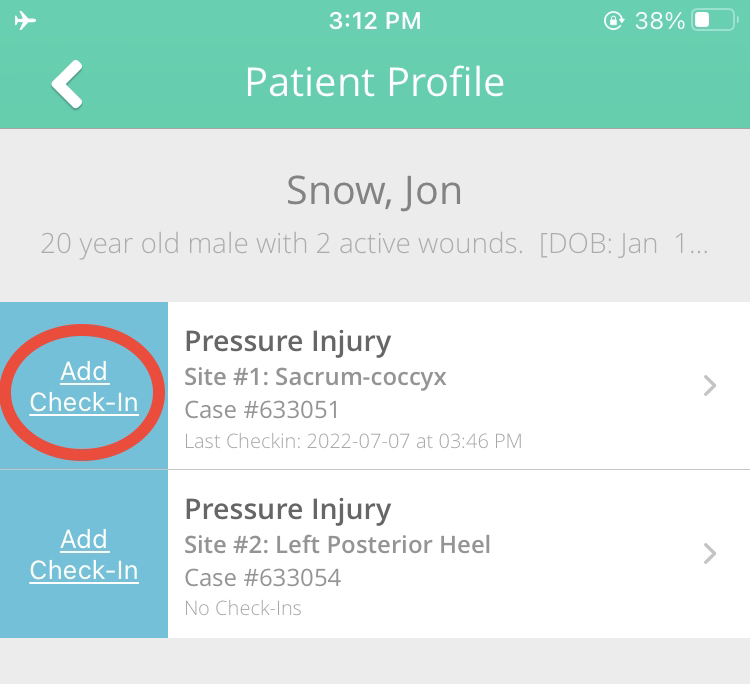
Tapping "Add Check-In" to the left of a case will initiate a new assessment of that wound/lesion site site and prompt the user to proceed with photo documentation.
Case View
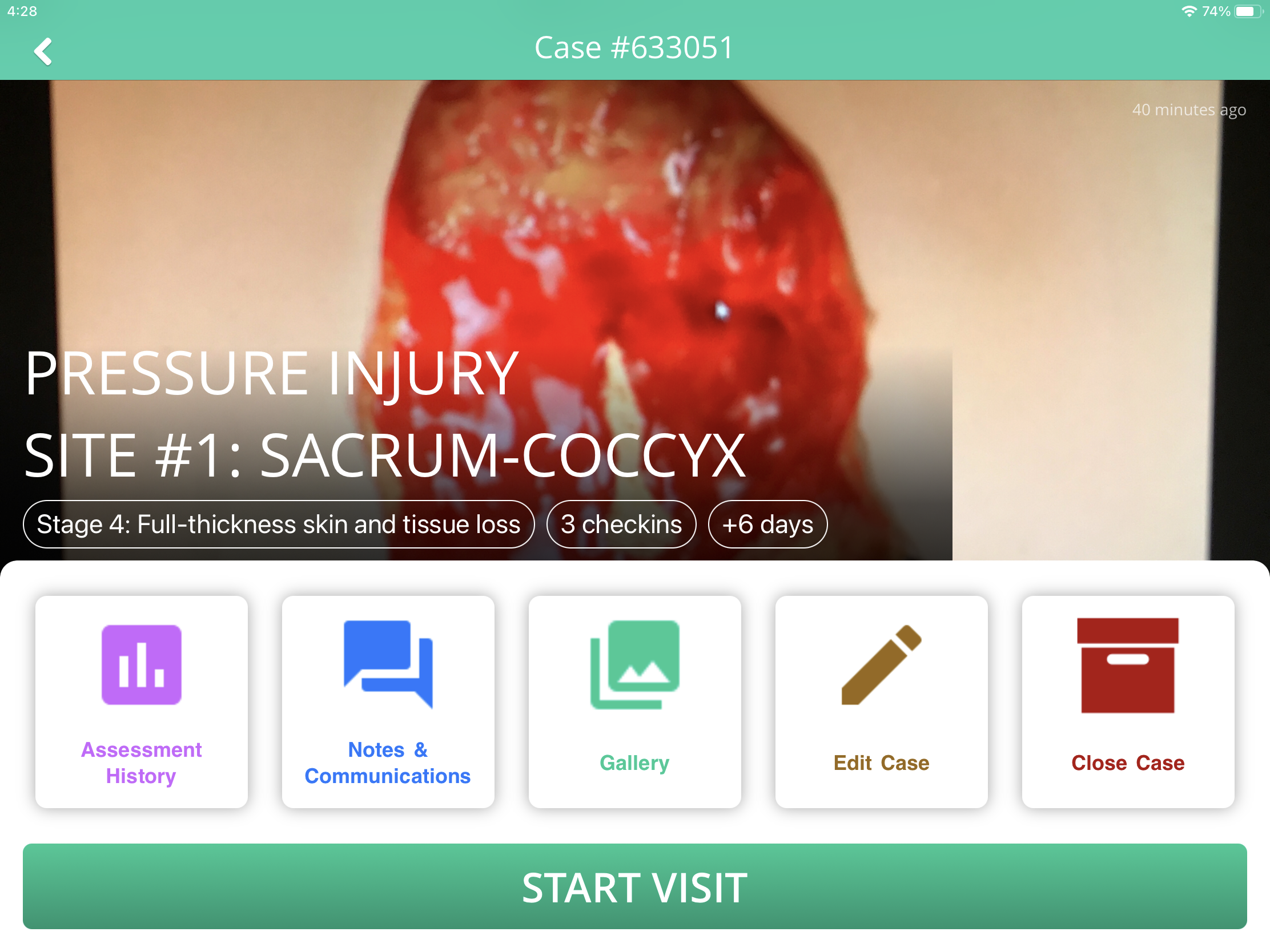
Tapping a case (wound/lesion site) on the Patient Profile will bring up the Case View. Available options on the Case View screen are described in the following sections.
Assessment History
To view documentation from previous assessments of a wound/lesion site, select Assessment History from the Case View. This page showcases a timeline graph of assessment scores over time, and lists individual assessments below.
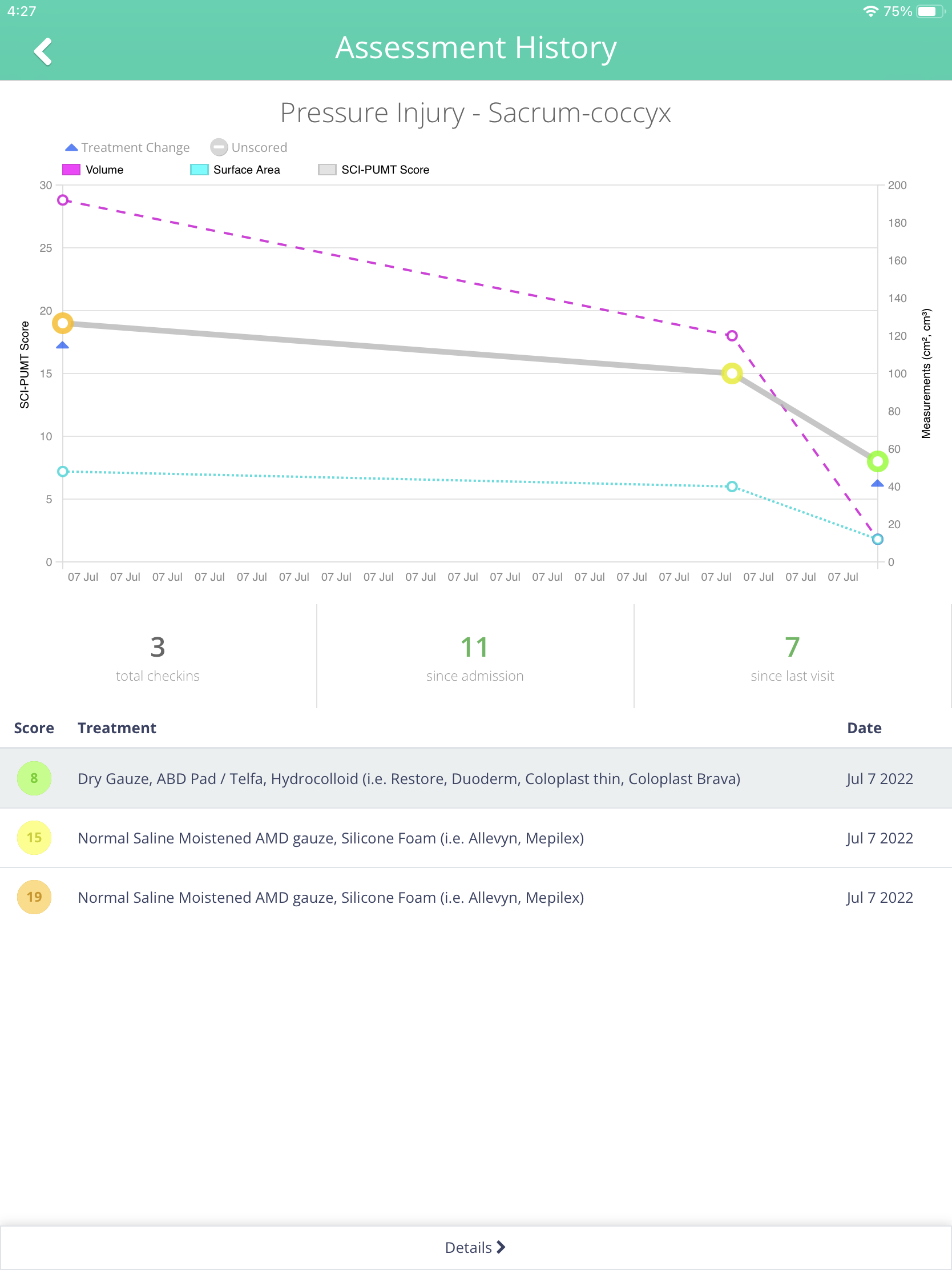
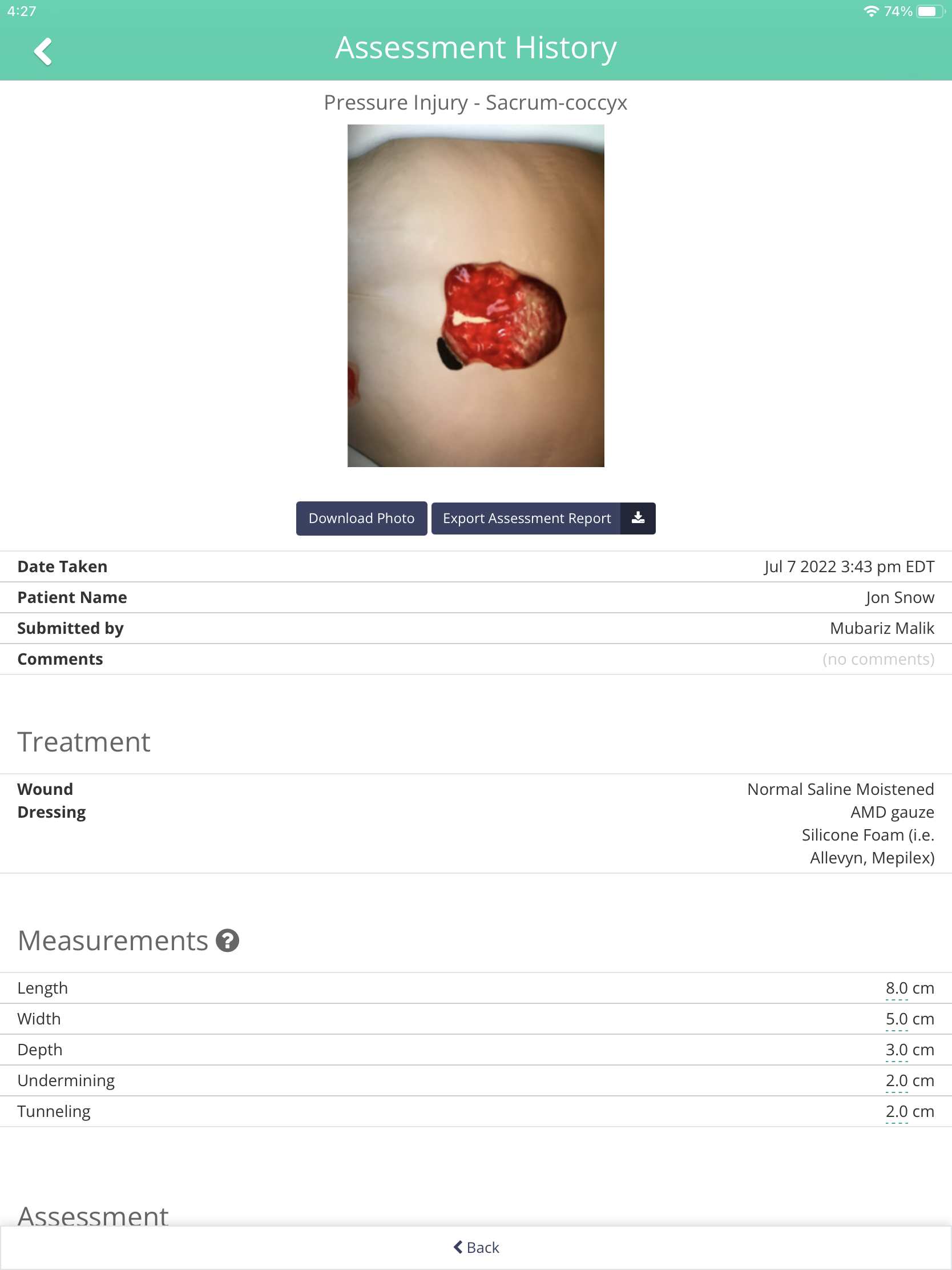
Tap on an individual assessment under the graph to bring up a scrollable page with details of that assessment. The "Export Assessment Report" button under the image thumbnail will generate a document of the chosen assessment.
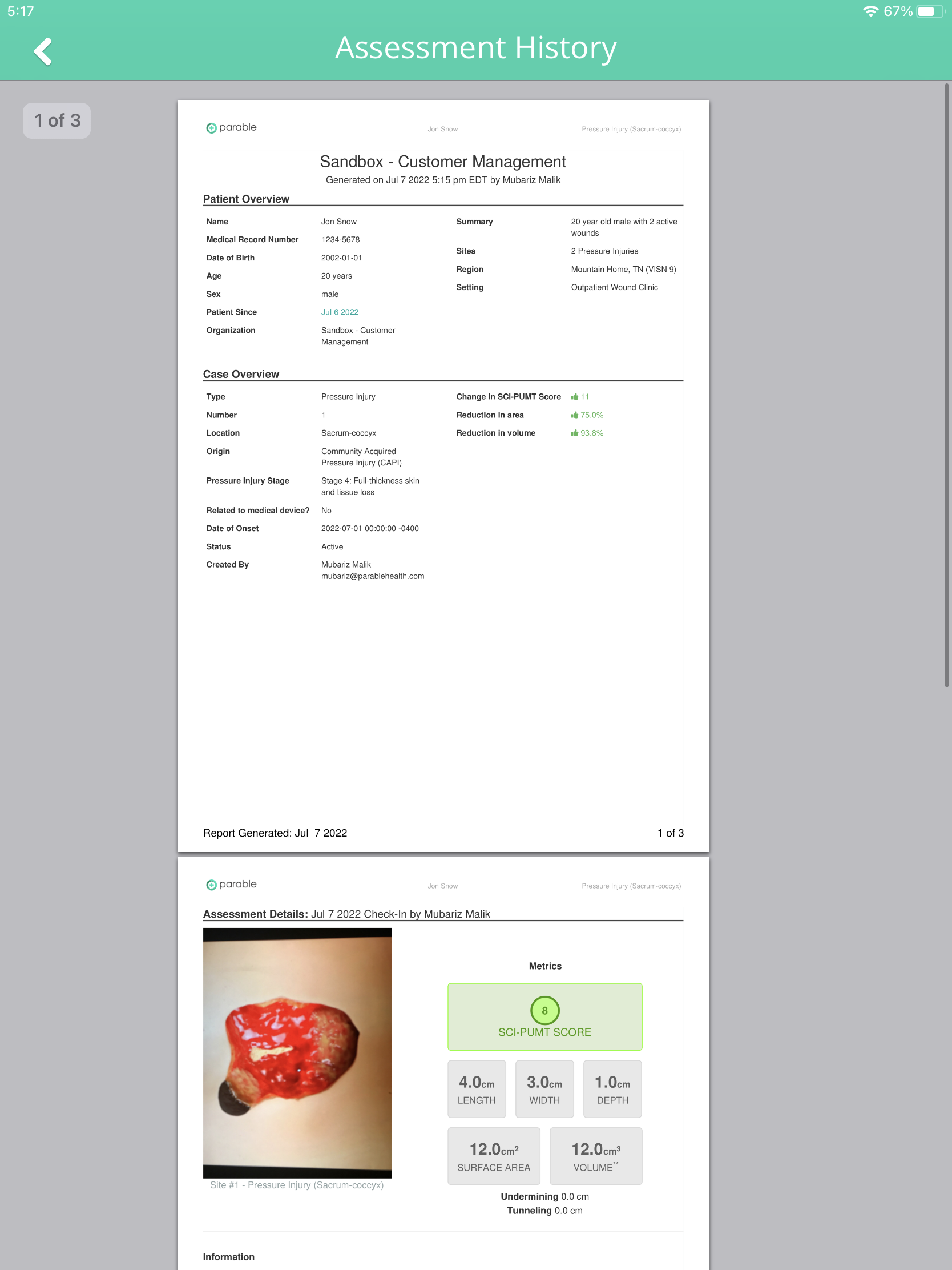
Note: Internet connectivity is required to view case history.
Notes & Communications
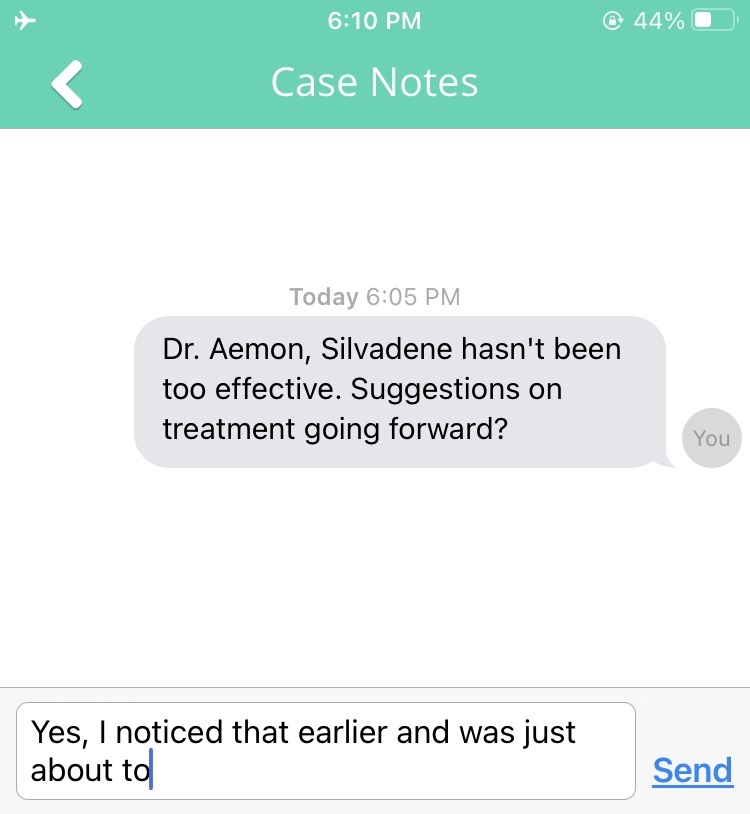
To view all notes and communications for a case, select Notes & Communications. Here, you’ll see all the notes left by other clinicians (from assessments, comments, and messages sent via this Notes section) and be able to leave notes and messages of your own.
Gallery
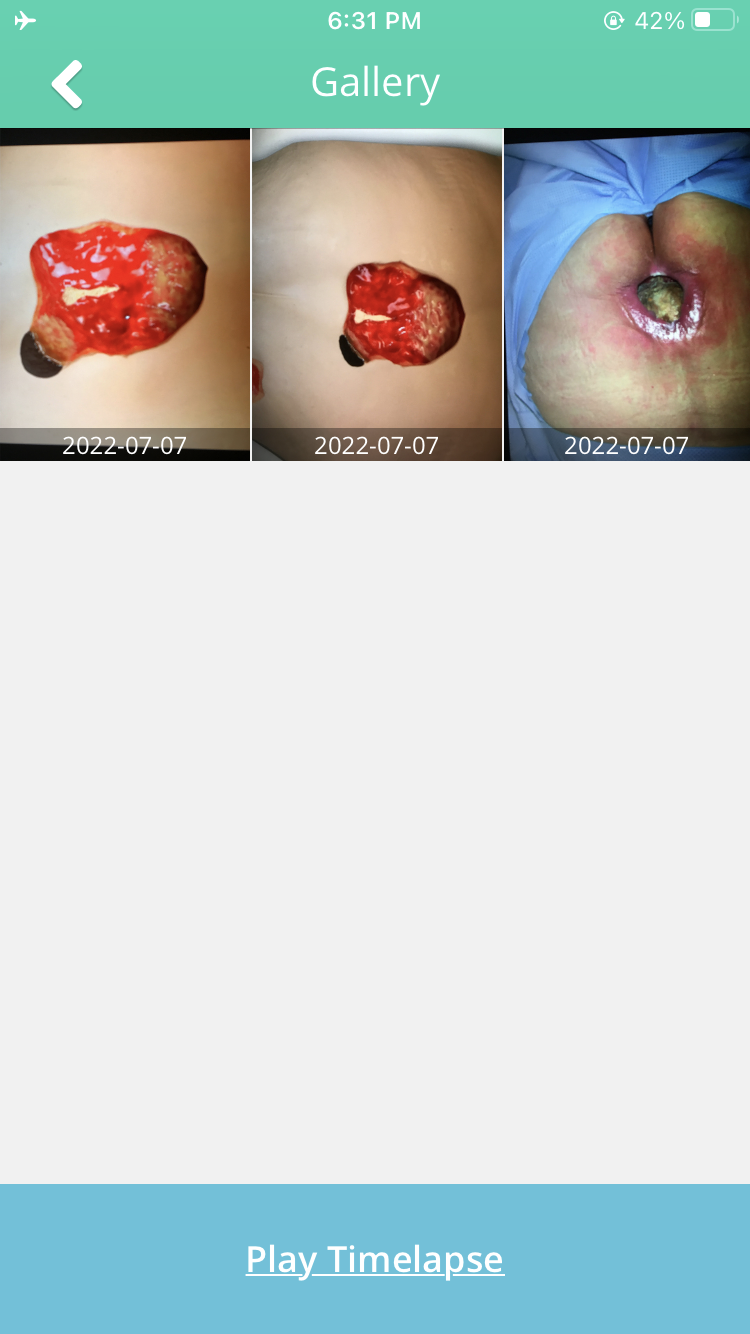
To view all photo documentation of a wound/lesion site, tap Gallery on the case view screen. Tap on a thumbnail for a larger, zoomable view. You can also view a timelapse by selecting Play Timelapse.
Edit Case
For details on editing cases, see the editing cases article.
Close Case
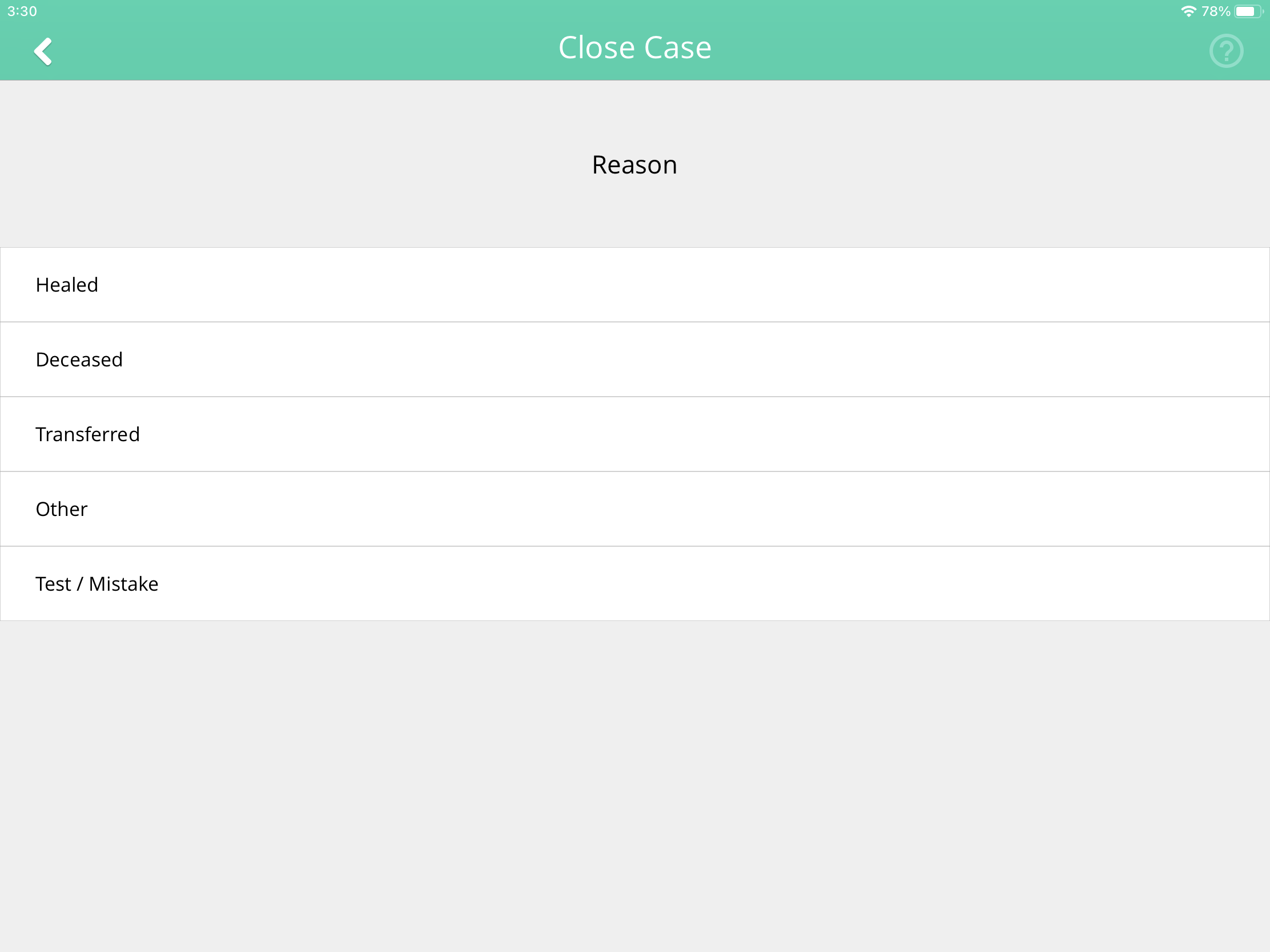
Tapping Close Case will prompt the user to select a reason for closing the case.
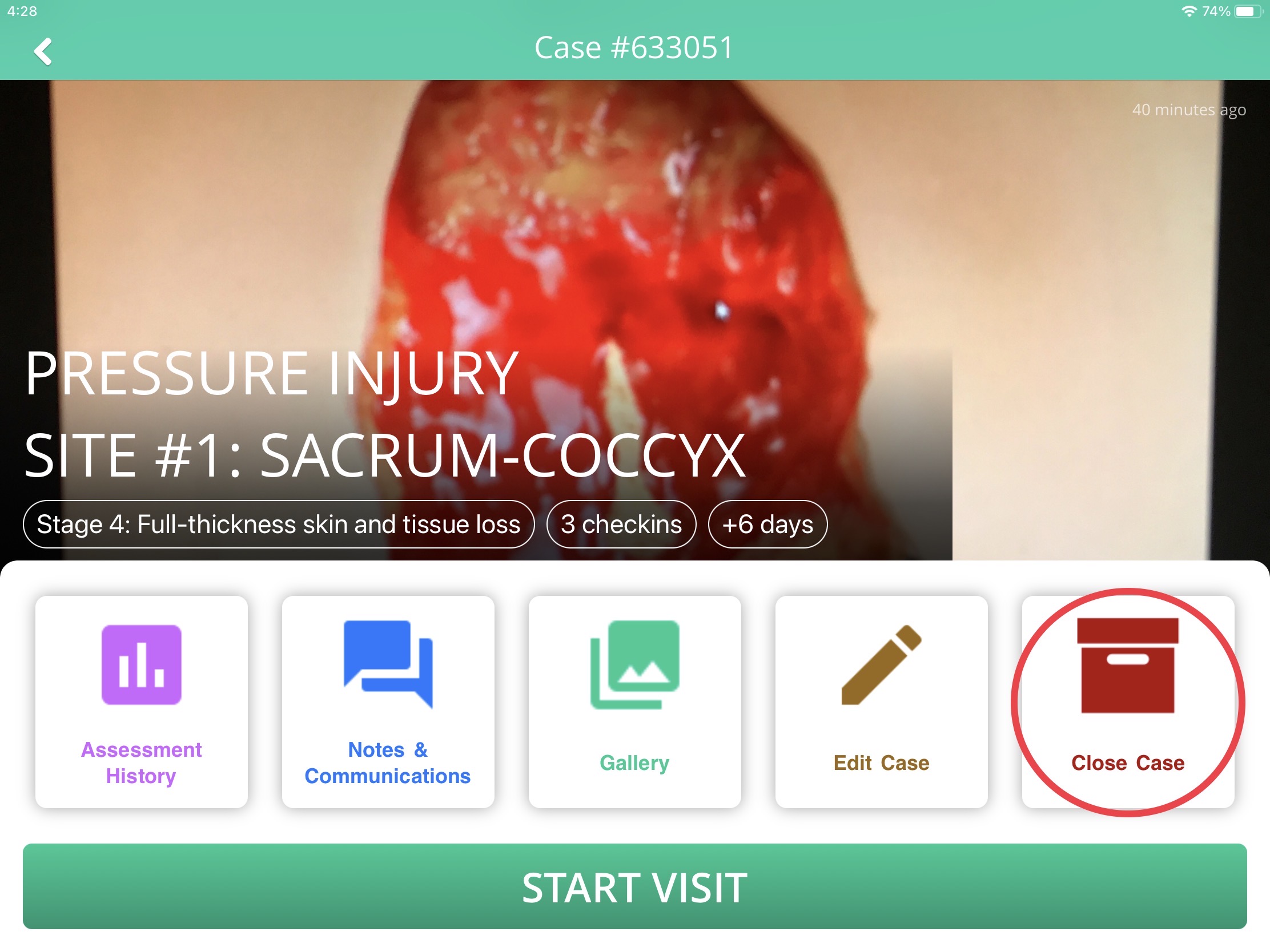
Enter a comment after selecting a reason to finish closing the case. Closed cases will no longer appear on the patient profile screen.